Computer ports are the connection points that allow devices to communicate with each other. Whether you’re connecting a USB flash drive, an external monitor, headphones, or accessing a website over the internet, you’re using one or more types of computer ports. Some ports are physical connectors found on your computer, while others are virtual network ports used for data communication.
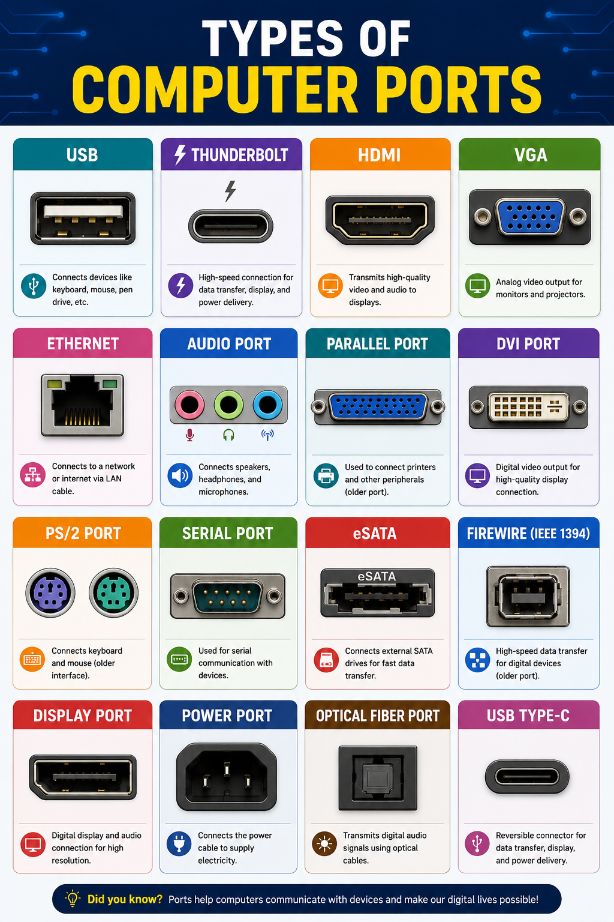
Understanding the different types of computer ports can help you choose the right cables, connect peripherals correctly, troubleshoot hardware issues, and better understand how computers communicate.
What Are Computer Ports?
A computer port is an interface that enables data to move between a computer and another device or network. Physical ports allow hardware devices to connect to your computer, while network ports allow software and internet services to exchange data.
Computer ports can be divided into two main categories:
- Physical Ports
- Network Ports
Let’s look at both in detail.
Physical Computer Ports
Physical ports are the connectors you can see on the outside of a laptop or desktop computer. They are used to connect external devices such as keyboards, monitors, printers, storage drives, cameras, and networking equipment.
USB Ports
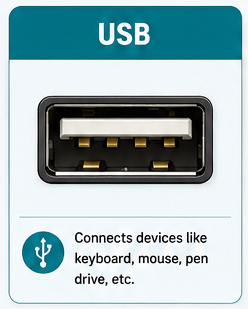
USB (Universal Serial Bus) is the most common type of computer port today. It supports data transfer, device charging, and power delivery.
| Common USB Types | Common Uses |
| USB Type-A USB Type-B Mini USB Micro USB USB Type-C | Flash drives External hard drives Keyboards Mouse Printers Smartphones USB hubs |
Modern USB standards also support high-speed data transfer and fast charging.
USB Type-C Port
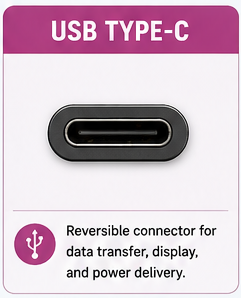
USB-C is the latest USB connector and is becoming the standard on laptops, smartphones, tablets, and accessories.
Advantages
- Reversible connector
- Faster data transfer
- Video output
- Fast charging
- Power Delivery (USB PD)
- Supports Thunderbolt on compatible devices
USB-C can often replace several older ports with a single connector.
HDMI Port
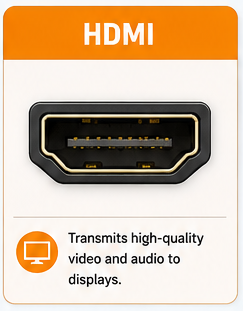
HDMI (High-Definition Multimedia Interface) transmits both digital video and audio through a single cable.
Used For
- Monitors
- TVs
- Projectors
- Gaming consoles
- Streaming devices
HDMI supports Full HD, 4K, 8K, HDR, and multi-channel audio.
DisplayPort
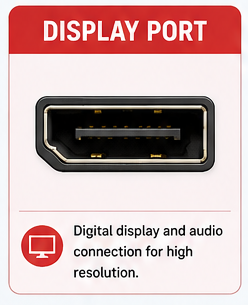
DisplayPort is designed primarily for computer displays and offers excellent support for high resolutions and high refresh rates.
Best For
- Gaming monitors
- Professional workstations
- Multi-monitor setups
- High refresh rate displays
VGA Port
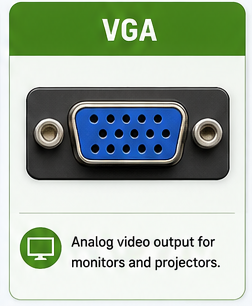
VGA (Video Graphics Array) is an older analog video connector that was once common on desktop computers and projectors.
Although still found on some legacy systems, it has largely been replaced by HDMI and DisplayPort.
DVI Port
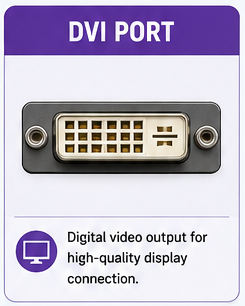
Digital Visual Interface (DVI) provides digital video output and was widely used before HDMI became popular.
Many older monitors and graphics cards still include DVI ports.
Ethernet (RJ45) Port
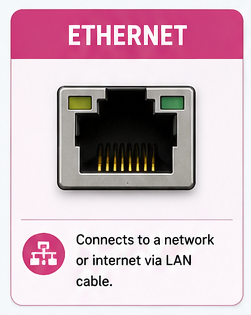
The Ethernet port connects a computer directly to a wired network.
Benefits
- Stable internet connection
- Low latency
- Faster local network transfers
- Better reliability than Wi-Fi
Ethernet is commonly used in offices, gaming setups, and servers.
Audio Ports
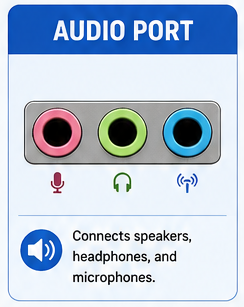
Most computers include 3.5 mm audio ports for connecting sound devices.
Common Audio Connections
- Headphones
- Speakers
- Microphones
- Headsets
Some modern laptops replace these with USB-C or wireless audio.
SD Card Slot
An SD card reader allows direct access to memory cards without needing an external adapter.
It’s commonly used by:
- Photographers
- Videographers
- Drone users
- Laptop users
Thunderbolt Port
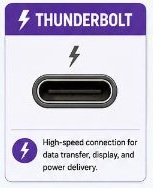
Thunderbolt combines high-speed data transfer, video output, and power delivery into a single port.
Recent versions use the USB-C connector while offering significantly higher bandwidth than standard USB.
Common Uses
- External SSDs
- Docking stations
- Multiple monitors
- Professional video editing
PS/2 Port
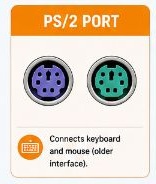
Before USB became common, keyboards and mice connected using PS/2 ports.
Although mostly obsolete, some desktop motherboards still include them for compatibility.
Serial Port (COM Port)
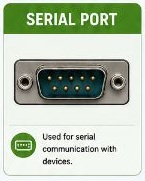
Serial ports were widely used for industrial equipment, networking devices, and older peripherals.
Today, they are mainly found in industrial systems and specialized hardware.
Parallel Port
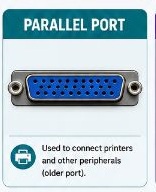
Parallel ports were primarily used for older printers and scanners.
They have almost completely disappeared from modern computers.
Network Ports
Unlike physical ports, network ports are software-based communication channels used by internet and network applications.
Each service uses a specific port number so computers know where incoming data should be delivered.
Common Network Ports
| Service | Port Number |
|---|---|
| HTTP | 80 |
| HTTPS | 443 |
| FTP | 21 |
| SSH | 22 |
| SMTP | 25 |
| DNS | 53 |
| DHCP | 67/68 |
| IMAP | 143 |
| POP3 | 110 |
| RDP | 3389 |
| MySQL | 3306 |
These ports are essential for web browsing, email, remote access, and online services.
Input Ports vs Output Ports
Some computer ports primarily receive data, while others send data, although many modern ports perform both functions.
Input Ports
Examples include:
- Microphone port
- USB keyboard connection
- Mouse connection
Output Ports
Examples include:
- HDMI
- DisplayPort
- VGA
- Audio output
Input/Output (I/O) Ports
Modern ports such as USB-C, Thunderbolt, and Ethernet can both send and receive data simultaneously.
Legacy vs Modern Computer Ports
Legacy Ports
Older ports include:
- VGA
- PS/2
- Parallel
- Serial
- DVI
These are becoming less common as newer technologies replace them.
Modern Ports
Today’s computers typically include:
- USB Type-C
- USB 3.x
- Thunderbolt
- HDMI
- DisplayPort
- Ethernet
- SD Card Reader
Modern ports provide faster speeds, better compatibility, and support for higher-resolution displays and faster storage devices.
How to Identify a Computer Port
You can usually identify a port by its shape and icon.
For example:
- USB ports display the USB trident symbol.
- HDMI ports are thin and trapezoid-shaped.
- Ethernet ports resemble an oversized telephone jack.
- Audio ports are small circular 3.5 mm connectors.
- USB-C ports are small, oval, and reversible.
Learning these shapes makes it much easier to connect devices correctly.
Tips for Choosing the Right Port
Before connecting a device, check:
- The type of connector required.
- Data transfer speed.
- Whether the port supports charging.
- Video output capability.
- Compatibility with your operating system.
- Cable quality and supported standards.
Using the correct port ensures the best performance and prevents compatibility issues.
Frequently Asked Questions
Are USB and USB-C the same?
No. USB is the technology, while USB-C is one type of USB connector. USB-C supports newer USB standards and additional features such as Power Delivery and video output.
Which port is best for connecting a monitor?
HDMI and DisplayPort are the most common choices. DisplayPort is generally preferred for high refresh rate gaming monitors, while HDMI is widely compatible with TVs and monitors.
Why do modern laptops have fewer ports?
Manufacturers often remove older connectors to make laptops thinner and lighter. USB-C and Thunderbolt can replace several older ports by supporting data transfer, charging, and video output through a single connector.
What is the difference between physical ports and network ports?
Physical ports are hardware connectors used to attach devices, while network ports are virtual communication endpoints used by software and internet services.
Final Thoughts
Computer ports are essential for connecting hardware and enabling communication between devices and networks. From USB-C and HDMI to Ethernet and Thunderbolt, each physical port serves a specific purpose. At the same time, virtual network ports such as HTTP, HTTPS, SSH, and DNS keep internet services running smoothly behind the scenes.
Knowing the different types of computer ports helps you choose compatible devices, troubleshoot connection problems, and make better decisions when upgrading your computer or accessories.