Managing hard drives and partitions is an important part of maintaining a Windows computer. Whether you’re installing Windows, preparing a new SSD, formatting a USB drive, or troubleshooting storage issues, Windows includes a powerful built-in tool called DiskPart that can help.
Unlike the graphical Disk Management utility, DiskPart is a command-line tool that gives you greater control over your storage devices. It allows you to create, delete, format, and manage partitions using simple commands. Because it works directly with your disks, it is also one of the most powerful—and potentially dangerous—tools included with Windows.
If you’re new to DiskPart, don’t worry. In this guide, we’ll explain what DiskPart is, how to open it safely, and the ten most useful DiskPart commands every Windows user should know.
What Is DiskPart?
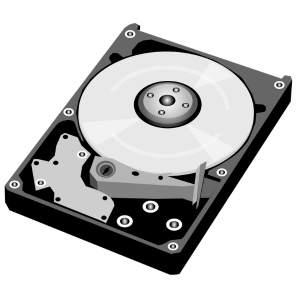
DiskPart is a built-in command-line utility in Windows used to manage storage devices such as hard drives, SSDs, USB flash drives, memory cards, and partitions.
It first appeared in Windows XP and has continued to be included in every modern version of Windows, including Windows 10 and Windows 11.
With DiskPart, you can:
- View all connected storage devices
- Create new partitions
- Delete existing partitions
- Format drives
- Assign drive letters
- Convert disks between MBR and GPT
- Prepare a drive for Windows installation
Because DiskPart works directly with storage devices, every command should be used carefully. A single incorrect command can permanently erase data.
When Should You Use DiskPart?
DiskPart is useful in many situations, including:
- Installing Windows on a new SSD
- Preparing a bootable USB drive
- Formatting a storage device
- Creating or deleting partitions
- Fixing partition problems
- Assigning a missing drive letter
- Converting a disk from MBR to GPT
- Managing external hard drives
Many IT professionals rely on DiskPart because it often succeeds where graphical tools cannot.
How to Open DiskPart
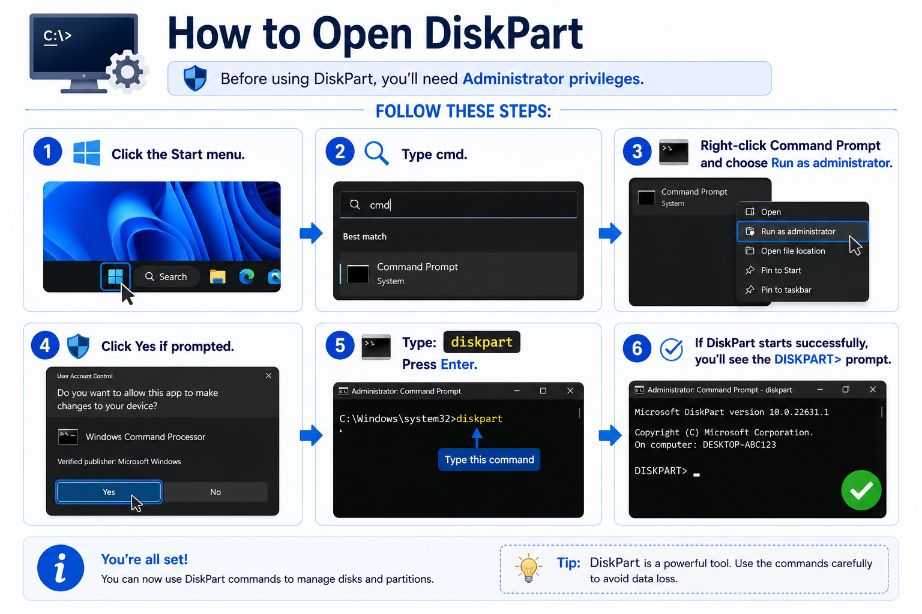
Before using DiskPart, you’ll need Administrator privileges.
Follow these steps:
- Click the Start menu.
- Type cmd.
- Right-click Command Prompt and choose Run as administrator.
- Click Yes if prompted.
- Type:
diskpart- Press Enter.
If DiskPart starts successfully, you’ll see the DISKPART> prompt.
1. diskpart
diskpartWhat it does
This command launches the DiskPart utility.
It must be entered before using any other DiskPart commands.
Once opened, every command you type will affect your storage devices directly.
2. list disk
list diskWhat it does
Displays every storage device connected to your computer.
The list usually includes:
- Internal SSDs
- Hard drives
- External drives
- USB flash drives
Each disk receives a number such as:
- Disk 0
- Disk 1
- Disk 2
You’ll need these numbers before selecting a disk.
When should you use it?
Use this command whenever you want to identify which disk you’re about to work with.
Always double-check the disk size before continuing.
3. select disk
select disk 1What it does
This command tells DiskPart which disk you want to manage.
For example:
select disk 0selects your primary drive.
After selecting a disk, every following command affects that disk only.
Important
Always verify that you’ve selected the correct disk.
Selecting the wrong disk could result in accidental data loss.
4. clean
cleanWhat it does
The clean command removes all partitions and partition information from the selected disk.
After running this command, Windows treats the drive as unallocated space.
When should you use it?
Use clean when:
- Reinstalling Windows
- Preparing a drive for a new operating system
- Removing damaged partition tables
- Reusing an old drive
Warning
The clean command deletes partition information and makes stored data inaccessible.
Always back up important files before using it.
5. convert gpt
convert gptWhat it does
Converts the selected disk to the GPT (GUID Partition Table) partition style.
GPT is recommended for modern computers using UEFI firmware.
Benefits of GPT
- Supports drives larger than 2 TB
- Allows more partitions
- Better reliability
- Improved recovery features
The disk usually needs to be empty before conversion.
6. list partition
list partitionWhat it does
Displays every partition on the currently selected disk.
The output includes:
- Partition number
- Size
- Type
This command helps identify the correct partition before making changes.
7. select partition
select partition 2What it does
Selects the partition you want to manage.
For example:
select partition 1After selecting the partition, you can format it, assign a drive letter, or perform other operations.
8. format fs=ntfs quick
format fs=ntfs quickWhat it does
Formats the selected partition using the NTFS file system.
The quick option performs a fast format without scanning every sector.
When should you use it?
Use this command when:
- Preparing a drive for Windows
- Formatting a new partition
- Reusing an existing drive
If you want a more thorough format, remove the quick option.
9. assign letter
assign letter=EWhat it does
Assigns a drive letter to the selected partition.
Windows uses drive letters such as:
- C:
- D:
- E:
- F:
If a partition doesn’t appear in File Explorer, assigning a drive letter often fixes the issue.
10. exit
exitWhat it does
Closes the DiskPart utility.
After exiting, you’ll return to the normal Command Prompt.
How to Delete a Partition Using DiskPart
Sometimes you may want to remove a partition before creating a new one, extending another partition, or preparing a drive for a fresh Windows installation. The delete partition DiskPart command allows you to permanently remove a selected partition from a disk. Before using this command, make sure you’ve selected the correct disk and partition, as deleting a partition will erase all data stored on it.
First, list the available partitions and select the one you want to remove:
list partition
select partition 2
Then run the following command:
delete partitionAfter the partition is deleted, the space becomes unallocated, which means you can create a new partition, extend an existing one, or leave it unused. If you’re deleting a protected partition, such as an OEM or recovery partition, you may need to use:
delete partition overrideUse the override option with caution because it forces DiskPart to delete partitions that Windows normally protects. Before running any delete command, always double-check that you’ve selected the correct partition and back up any important files, as the process cannot be undone.
This section naturally incorporates the keyword delete partition DiskPart while providing useful information without disrupting the structure of your article.
Important Safety Tips
DiskPart is extremely powerful, but it doesn’t ask for confirmation before executing many commands.
Before running commands like clean, delete partition, or format, always:
- Verify the selected disk.
- Confirm the selected partition.
- Back up important files.
- Disconnect external drives you’re not working on.
- Read the command carefully before pressing Enter.
Taking a few extra seconds can prevent permanent data loss.
DiskPart vs Disk Management
Windows offers two built-in tools for managing storage.
| Feature | DiskPart | Disk Management |
|---|---|---|
| Interface | Command line | Graphical |
| Beginner-friendly | No | Yes |
| Advanced features | Yes | Limited |
| Automation | Yes | No |
| Windows installation support | Yes | Limited |
Disk Management is ideal for everyday users, while DiskPart provides more flexibility for advanced tasks.
Frequently Used DiskPart Workflow
A common sequence when preparing a new drive is:
diskpart
list disk
select disk 1
clean
convert gpt
create partition primary
format fs=ntfs quick
assign letter=E
exit
Important: Replace disk 1 with the correct disk number shown on your system. Running these commands on the wrong drive can erase your data.
Final Thoughts
DiskPart is one of the most powerful storage management tools built into Windows. Whether you’re installing Windows, preparing a new SSD, fixing partition issues, or formatting a USB drive, it gives you complete control over your storage devices.
However, with that power comes responsibility. Commands such as clean and format can permanently remove data, so it’s essential to double-check the selected disk before making any changes.
By understanding these ten essential DiskPart commands, you’ll be better prepared to manage disks, troubleshoot storage problems, and perform advanced maintenance tasks with confidence.
Suggestions
- What Is a Corrupted File?
- Which Operating System Should You Choose?
- Error Code 0x0000001A Explained
- What Is Cache Memory?
- Must-Know Windows Repair Commands Every User Should Learn
- 10 Ways to Protect Your Digital Footprint
- What Is a Digital Footprint?
- What Happens When Your C Drive Is Full?
- Windows 11 July 14 Patch Tuesday Update