Windows is a reliable operating system, but like any software, it can sometimes run into problems. You might notice your computer becoming slow, Windows Update failing, files getting corrupted, or your PC refusing to boot properly. In many cases, you don’t need to reinstall Windows or take your computer to a repair shop. Windows already includes several built-in command-line tools that can diagnose and fix many common issues.
These commands are available through Command Prompt or Windows Terminal, and they are trusted by IT professionals and experienced users around the world. While some commands are designed to repair system files, others fix disk errors, rebuild boot records, or troubleshoot network problems.
In this guide, we’ll explain the most useful Windows repair commands, what they do, when you should use them, and how to run them safely.
Why Learn Windows Repair Commands?
Most Windows problems don’t happen without warning. Your computer may become slower than usual, applications may crash, Windows updates might fail, or you may see error messages related to missing or corrupted files.
Built-in repair commands allow you to identify and fix many of these problems without installing additional software. Knowing just a few commands can save you hours of troubleshooting and, in some cases, prevent a complete Windows reinstall.
Most of these commands require Administrator privileges, so you’ll need to open Command Prompt or Windows Terminal as an administrator.
How to Open Command Prompt as Administrator
Before running any repair command:
- Click the Start button.
- Type cmd or Command Prompt.
- Right-click Command Prompt.
- Select Run as administrator.
- Click Yes if prompted by User Account Control.
Now you’re ready to run repair commands.
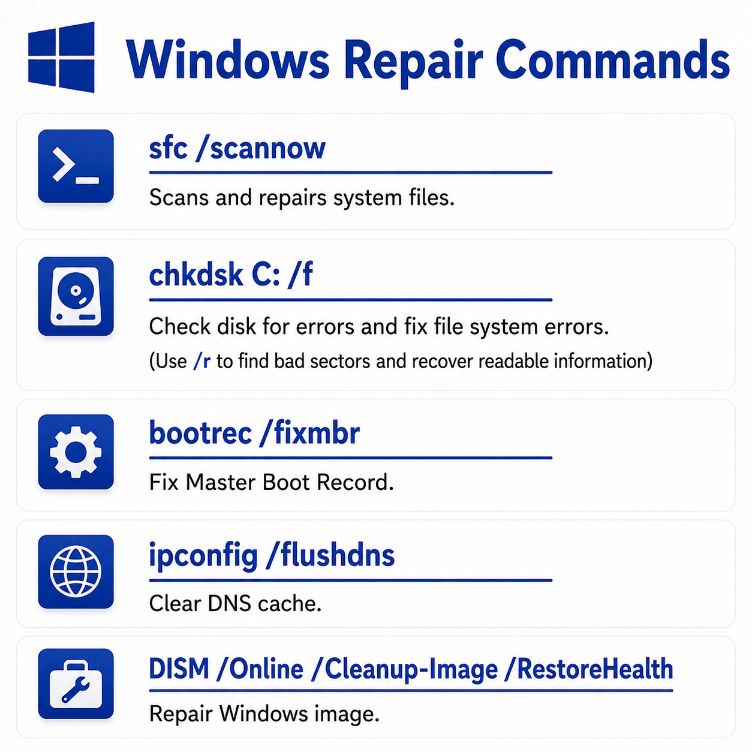
1. SFC (System File Checker)
One of the first commands you should try when Windows behaves unexpectedly is System File Checker, commonly known as SFC.
Windows relies on thousands of system files to operate correctly. If one or more of these files become corrupted, Windows may crash, display errors, or certain features may stop working.
The SFC tool scans protected Windows system files and automatically replaces damaged files with healthy copies stored by Windows.
Run the following command:
sfc /scannowWhen should you use it?
Use SFC if you notice:
- Windows crashes
- Missing DLL errors
- Apps refusing to open
- Blue Screen errors
- Windows behaving unusually after malware removal
The scan usually takes between 10 and 30 minutes depending on your system.
If corrupted files are found, Windows attempts to repair them automatically.
2. DISM (Deployment Image Servicing and Management)
Sometimes SFC cannot repair damaged files because the Windows system image itself has become corrupted.
That’s where DISM comes in.
DISM repairs the Windows image used by SFC. After DISM finishes successfully, running SFC again often repairs files that couldn’t be fixed previously.
Run:
DISM /Online /Cleanup-Image /RestoreHealthWhen should you use DISM?
DISM is useful when:
- Windows Update keeps failing
- SFC cannot repair files
- System files remain corrupted
- Windows behaves unpredictably
Depending on your internet connection and system speed, DISM may take anywhere from 10 to 40 minutes.
For best results, Microsoft recommends running:
- DISM
- SFC
in that order when repairing Windows.
3. CHKDSK (Check Disk)
If your computer suddenly freezes, files disappear, or Windows reports drive errors, your storage drive may contain file system problems.
CHKDSK scans the drive for errors and repairs logical file system issues.
Basic repair:
chkdsk C: /fTo scan for bad sectors and recover readable information:
chkdsk C: /f /rWhat do the switches mean?
- /f fixes file system errors.
- /r locates bad sectors and attempts to recover readable data.
If you’re scanning the system drive (usually C:), Windows will ask to schedule the scan for the next restart.
When should you use CHKDSK?
It’s helpful when:
- Files become corrupted
- Windows reports disk errors
- Your PC crashes unexpectedly
- The drive makes unusual behavior (software-related)
- File Explorer freezes frequently
4. BOOTREC
If Windows refuses to start after a failed update or boot error, the problem may involve damaged boot records.
The BOOTREC command repairs important startup components.
Repair the Master Boot Record:
bootrec /fixmbrRepair the boot sector:
bootrec /fixbootScan for Windows installations:
bootrec /scanosRebuild the Boot Configuration Data:
bootrec /rebuildbcdWhen should you use BOOTREC?
Use these commands if:
- Windows won’t boot
- You see “Operating System Not Found”
- Startup Repair fails
- Boot configuration becomes corrupted
These commands are usually run from the Windows Recovery Environment rather than a normal Windows session.
5. IPCONFIG /FLUSHDNS
Sometimes websites refuse to load even though your internet connection works perfectly.
Windows stores DNS information in a local cache to speed up browsing. Occasionally this cache becomes outdated or corrupted.
Clear the DNS cache with:
ipconfig /flushdnsWhen should you use it?
This command helps when:
- Websites don’t open
- Domain names resolve incorrectly
- DNS changes aren’t updating
- Internet problems appear after changing DNS servers
It’s completely safe and only takes a few seconds.
6. IPCONFIG /RELEASE and /RENEW
Network issues can also occur because your computer has an outdated IP address.
Release the current IP:
ipconfig /releaseRequest a new IP address:
ipconfig /renewThese commands are commonly used to resolve local network connection issues.
7. NETSH WINSOCK RESET
Windows uses something called the Winsock Catalog for network communication.
If it becomes corrupted, internet connectivity may stop working.
Repair it with:
netsh winsock resetRestart your computer afterward.
Use this command if:
- Internet suddenly stops working
- Network errors appear after malware removal
- VPN software causes connection issues
8. SYSTEMINFO
Sometimes you simply need information about your computer.
Run:
systeminfoThis command displays:
- Windows version
- Installation date
- System model
- BIOS version
- RAM
- Processor
- Installed updates
- Network information
It’s especially useful when troubleshooting or contacting technical support.
9. DRIVERQUERY
Driver problems often cause crashes and Blue Screen errors.
View installed drivers:
driverqueryThis command lists installed drivers, making it easier to identify outdated or problematic drivers.
10. TASKLIST and TASKKILL
Sometimes an application freezes and refuses to close.
View running processes:
tasklistClose a process:
taskkill /IM program.exe /FFor example:
taskkill /IM notepad.exe /FThis forcefully closes the selected application.
Which Commands Should You Run First?
If you’re unsure where to start, this order works well for many Windows problems:
- Run DISM to repair the Windows image.
- Run SFC to repair system files.
- Run CHKDSK if you suspect drive errors.
- Restart your computer.
- Install any pending Windows updates.
This combination resolves many common Windows issues without requiring advanced troubleshooting.
Important Safety Tips
Although these commands are built into Windows, they should still be used carefully.
- Always open Command Prompt as Administrator.
- Save your work before running commands that require a restart.
- Let scans complete without interruption.
- Avoid downloading repair commands from untrusted websites.
- Back up important files regularly, especially before repairing boot records or storage drives.
Following these precautions helps ensure the repair process goes smoothly.
Final Thoughts
Windows includes several powerful repair tools that can solve many common problems without reinstalling the operating system. Commands like SFC, DISM, CHKDSK, and BOOTREC have been trusted by IT professionals for years because they can repair corrupted system files, fix disk errors, restore boot problems, and improve system stability.
While these tools won’t fix every hardware issue, they are often the first and best place to start when Windows isn’t working as expected. Learning a handful of these commands can save time, reduce frustration, and help keep your computer running smoothly.
Suggestions
- What Is a Corrupted File?
- What Is a Digital Footprint?
- What Happens When Your C Drive Is Full?
- Windows 11 July 14 Patch Tuesday Update
- How to Add Password to a Folder
- DISM vs SFC vs CHKDSK
- Ransomware vs File Corruption
- Malware That Corrupts Files
- What Is Bit Rot? Understanding Silent Data Corruption