Whether you store financial records, work documents, personal photos, or confidential projects on your computer, adding a password to a folder is one of the easiest ways to keep that information private. Password protection helps prevent unauthorized access, especially if you share your computer with family members, coworkers, or classmates.
Unlike individual files that can often be encrypted directly, folders require a different approach depending on the operating system you’re using. Windows and macOS both offer ways to secure your data, although the methods are different.
In this guide, you’ll learn how to password protect a folder on Windows and macOS, along with the best practices for keeping your files safe.
How to Password Protect a Folder on Windows and macOS
Why Password Protect a Folder?
There are many situations where securing a folder makes sense.
For example, you may want to protect:
- Personal documents
- Tax records
- Bank statements
- Password backups
- Client files
- Business contracts
- Medical records
- Private photos and videos
Adding password protection provides an extra layer of security, making it much harder for someone else to access your files without permission.
Can You Add a Password to a Folder Directly?
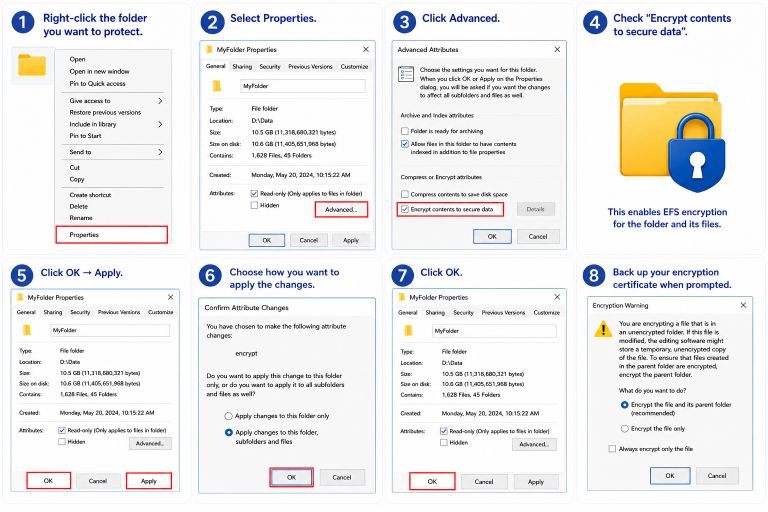
One of the most common misconceptions is that Windows and macOS let you right-click a folder and simply assign it a password.
In reality, neither operating system includes a built-in “Password Protect Folder” option for ordinary folders.
Instead, you secure the contents by using encryption, encrypted disk images, password-protected archives, or drive encryption features. These methods protect your files far more effectively than simply hiding a folder.
How to Password Protect a Folder on Windows
Windows offers several ways to secure folders, depending on your edition and your security needs.
Method 1: Use a Password-Protected ZIP Archive
One of the simplest ways to share or store sensitive files is by placing them inside an encrypted ZIP archive.
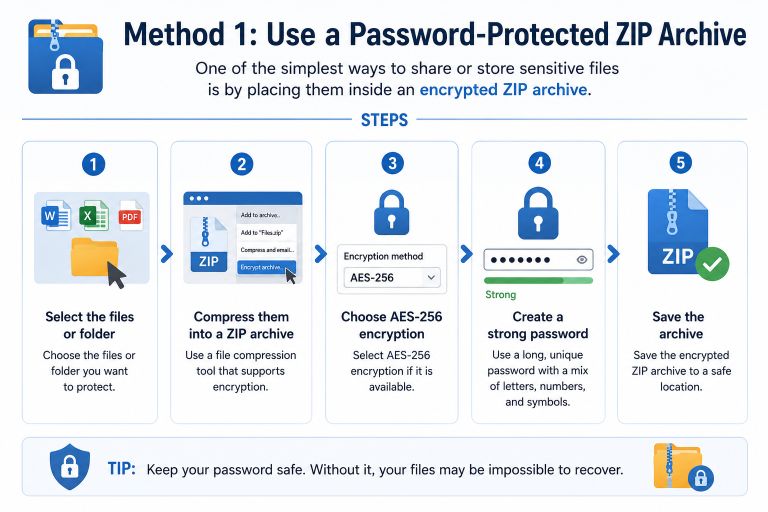
Steps:
- Select the files or folder you want to protect.
- Compress them into a ZIP archive using a file compression tool that supports encryption.
- Choose AES-256 encryption if available.
- Create a strong password.
- Save the archive.
Anyone attempting to open the archive will need the password before accessing its contents.
This method is ideal for sending files through email or storing confidential documents.
Method 2: Use BitLocker (Windows Pro and Enterprise)
If you’re using Windows Pro or Enterprise, BitLocker provides full-drive encryption.
Although BitLocker does not encrypt individual folders directly, you can:
- Create a separate partition or virtual drive.
- Enable BitLocker on that drive.
- Store sensitive folders inside the encrypted drive.
When the drive is locked, the files remain inaccessible without authentication.
BitLocker is an excellent choice for laptops that may be lost or stolen because it protects the entire encrypted volume.
Method 3: Use Third-Party Folder Lock Software
Several trusted applications allow you to password protect folders with additional security features.
Many include:
- Folder encryption
- Password protection
- Automatic locking
- Secure file deletion
- USB drive protection
When choosing third-party software, download it only from the developer’s official website and keep it updated to reduce security risks.
How to Password Protect a Folder on macOS
macOS does not let you assign a password directly to a folder, but it includes a built-in encryption feature that works extremely well.
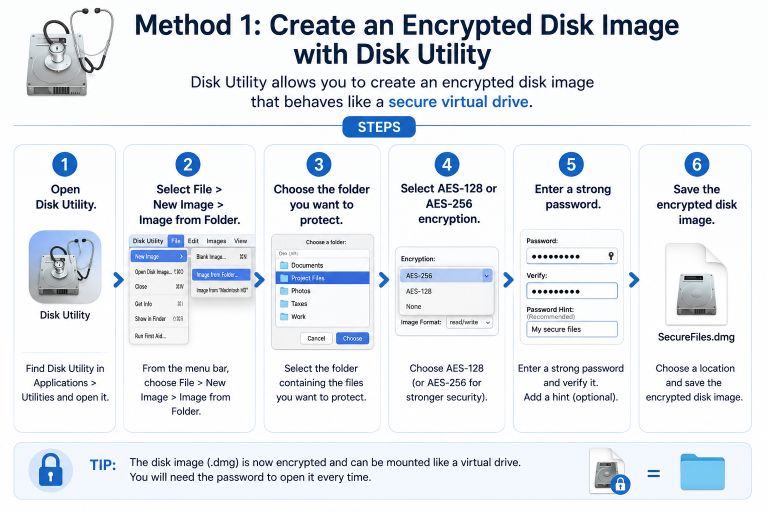
Method 1: Create an Encrypted Disk Image with Disk Utility
Disk Utility allows you to create an encrypted disk image that behaves like a secure virtual drive.
Steps:
- Open Disk Utility.
- Select File > New Image > Image from Folder.
- Choose the folder you want to protect.
- Select AES-128 or AES-256 encryption.
- Enter a strong password.
- Save the encrypted disk image.
Whenever you want to access the files, double-click the disk image and enter the password. Without the password, the contents remain encrypted.
This is the most common built-in method for protecting folders on macOS.
Method 2: Encrypt an External Drive
If your confidential files are stored on an external SSD or USB drive, macOS lets you encrypt the entire device.
To do this:
- Connect the external drive.
- Open Finder.
- Right-click the drive.
- Choose Encrypt.
- Create a strong password.
- Confirm the encryption process.
After encryption, the drive requires the password whenever it’s connected to another Mac.
Tips for Choosing a Strong Password
Even the best encryption is only as secure as the password protecting it.
A strong password should:
- Contain at least 12–16 characters.
- Include uppercase and lowercase letters.
- Use numbers and symbols.
- Avoid dictionary words.
- Be unique for each encrypted folder or archive.
If remembering complex passwords is difficult, consider using a reputable password manager.
Best Practices for Protecting Sensitive Files
Password protection is only one part of keeping your data secure.
For better protection:
- Keep regular backups of important files.
- Enable full-disk encryption on your computer.
- Install security updates promptly.
- Avoid storing passwords in plain text files.
- Scan your computer for malware regularly.
- Lock your computer when stepping away.
- Store backup copies in a secure location.
These habits reduce the chances of unauthorized access or accidental data loss.
Suggestions
- What Is a Corrupted File?
- DISM vs SFC vs CHKDSK
- Ransomware vs File Corruption
- Malware That Corrupts Files
- What Is Bit Rot? Understanding Silent Data Corruption
- APFS Reliability: Is Apple’s File System Safe for Your Data?
- Can AI Detect Corrupted Files?
- The Science Behind File Corruption
- What Is a Binary File?
Frequently Asked Mistakes to Avoid
Many users believe their files are protected when they are not.
Common mistakes include:
- Hiding a folder instead of encrypting it.
- Using weak or reused passwords.
- Forgetting the encryption password.
- Relying on outdated compression tools with weak encryption.
- Storing the password in the same folder as the protected files.
Avoiding these mistakes significantly improves the security of your data.
Try More File Corruption Tools
Final Thoughts
Protecting sensitive folders is an important step toward safeguarding your personal and professional information. Although Windows and macOS don’t provide a simple “add password to folder” button, both operating systems include reliable ways to secure your files using encryption.
On Windows, password-protected ZIP archives, BitLocker, and trusted third-party encryption software are practical solutions. On macOS, creating an encrypted disk image with Disk Utility is the easiest built-in method, while encrypting external drives offers additional protection for portable storage.
Whichever method you choose, use a strong password, keep secure backups, and remember that encryption is most effective when combined with good security practices.