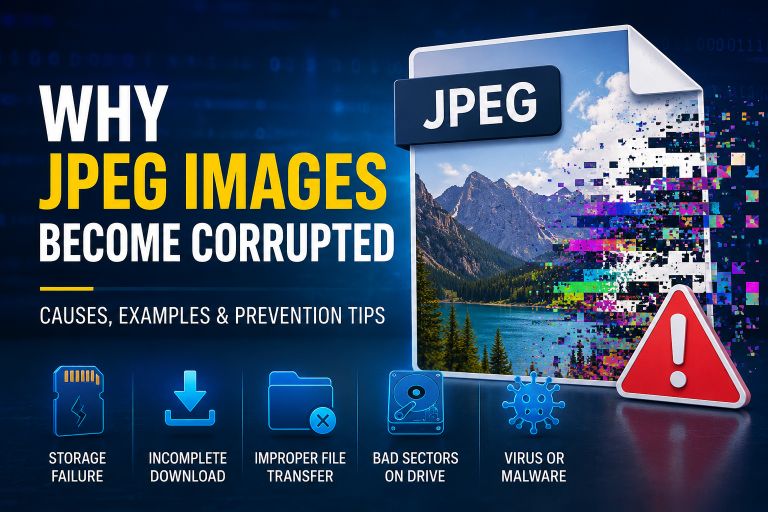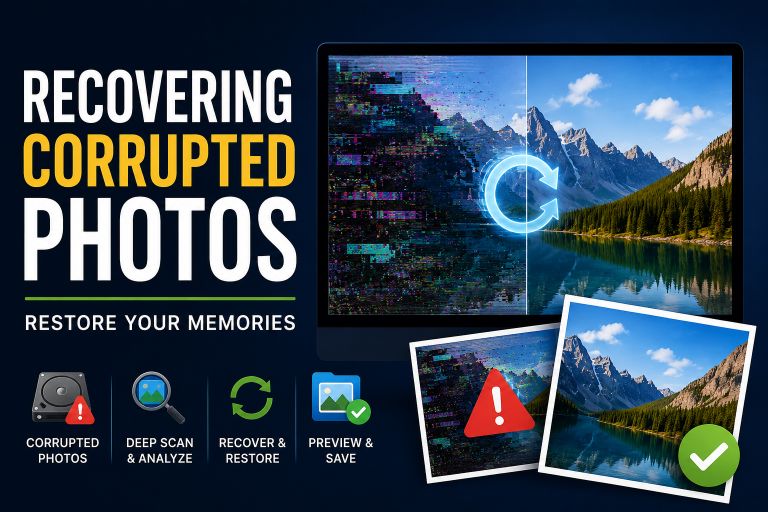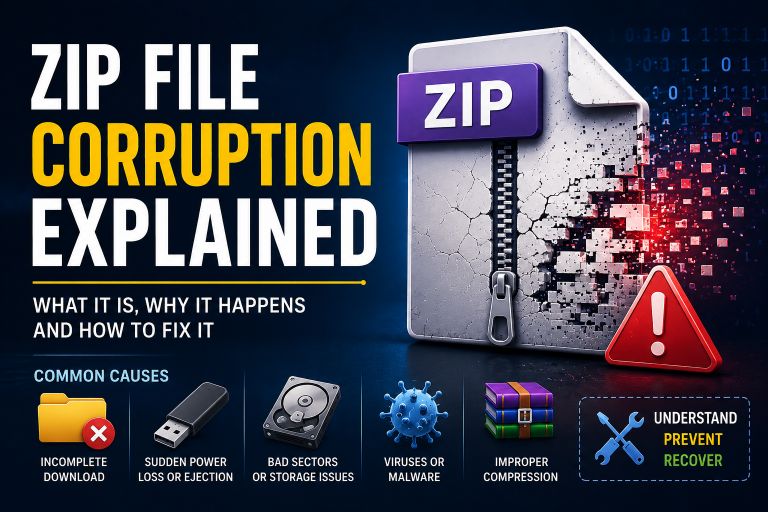
Few things are more frustrating than double-clicking an important file only to see an error message instead of your document, photo, video, or spreadsheet. Whether it’s a work presentation that refuses to open, a family photo that suddenly becomes unreadable, or a PDF that displays a “file is corrupted” warning, file corruption can happen to anyone.
The good news is that a corrupted file doesn’t always mean your data is gone forever. In many cases, damaged files can be repaired, recovered, or restored using built-in operating system tools, backups, or specialized data recovery software. The success of the recovery depends on how severely the file is damaged and what caused the corruption in the first place.
In this guide ‘How to Fix a Corrupted File?’, you’ll learn what file corruption is, what happens when a file becomes corrupted, how to recognize the warning signs, why files get damaged, and the most effective ways to repair corrupted files. Whether you’re using Windows, macOS, or external storage devices, these practical methods can help you recover important data while reducing the chances of future file corruption.
What Is a Corrupted File?
A corrupted file is a file whose internal data or structure has been altered, damaged, or rendered inconsistent, preventing the software designed to read it from opening or processing it correctly. Unlike a deleted file, which is simply removed from view but may still exist on storage media, a corrupted file still exists but contains damaged information that makes it partially or completely unusable.
Every file has a specific structure that tells your operating system and applications how to interpret its contents. For example, a Microsoft Word document contains formatting information, text, images, and metadata arranged in a predefined format. If even a small part of this structure becomes damaged, Microsoft Word may fail to open the document or display an error indicating that the file is corrupted.
File corruption can affect virtually any file type, including:
- Word documents (.doc, .docx)
- PDF files
- Excel spreadsheets
- PowerPoint presentations
- Images (JPG, PNG, GIF)
- Videos (MP4, MOV, AVI)
- ZIP and RAR archives
- Audio files
- Database files
- Software applications
In some situations, only a small portion of the file is damaged, allowing partial recovery. In others, critical structural information is lost, making repair more difficult.
What Happens If a File Is Corrupted?
One of the most common questions people ask is, “What happens if a file is corrupted?”
The answer depends on the type of file and the extent of the damage. Sometimes the effects are minor, while in other cases the file becomes completely inaccessible.
Here are the most common symptoms of a corrupted file.
The File Won’t Open
The most obvious sign is that the application refuses to open the file. You may see messages such as:
- The file is corrupted.
- Cannot open the document.
- Invalid file format.
- File cannot be read.
- The file appears to be damaged.
Missing or Incomplete Content
A document may open but contain missing paragraphs, blank pages, broken images, or missing tables. Videos may stop playing halfway through, while images may display only part of the picture.
Unexpected Application Crashes
Some applications crash immediately when attempting to open a corrupted file because they encounter damaged data they cannot interpret correctly.
Strange Characters or Symbols
Instead of readable text, you may see random letters, symbols, or unreadable characters. This usually indicates that portions of the file’s binary data have been altered.
File Size Changes
A corrupted file may suddenly become extremely small, unusually large, or even show a size of 0 KB. This often suggests incomplete writing or storage errors.
Slow Performance
In some cases, Windows or the application repeatedly attempts to read damaged sectors, causing noticeable delays while opening or copying the file.
How to Know If a File Is Corrupted
Sometimes corruption is obvious, but not always. Learning how to identify a corrupted file early can improve your chances of recovering your data.
Here are the most common indicators.
1. Error Messages When Opening the File
Programs often display warnings such as:
- File is corrupted
- Unsupported file format
- File cannot be opened
- The document is unreadable
- File contents are damaged
These messages usually indicate that the application detected inconsistencies in the file structure.
2. The File Opens Incorrectly
The file may open but contain:
- Blank pages
- Missing images
- Broken formatting
- Garbled text
- Missing audio or video sections
This typically means only part of the file has been damaged.
3. The File Suddenly Stops Working
If a document opened perfectly yesterday but refuses to open today without any changes, corruption is a likely cause.
4. File Size Looks Incorrect
Compare the damaged file with older backups if available. If the size has changed dramatically, it may indicate incomplete saving or storage failure.
5. Windows Reports Disk Errors
Sometimes the file itself isn’t the problem. Instead, the storage device may contain bad sectors or filesystem errors that affect multiple files.
Running Windows’ built-in disk checking tools can help determine whether the storage device is contributing to file corruption.
6. Hash Verification Fails
Advanced users often compare MD5, SHA-1, or SHA-256 hashes to verify file integrity. If the calculated hash differs from the original, the file has been modified or damaged.
Why Do Files Become Corrupted?
Understanding the cause of corruption makes it much easier to prevent it from happening again. File corruption rarely occurs without a reason. Most cases result from hardware failures, software interruptions, or human error.
Sudden Power Loss
If your computer loses power while saving a document, the write process may stop midway. As a result, only part of the file is written to disk, leaving the document incomplete and unreadable.
This is one of the most common causes of corrupted files on desktop computers without an uninterruptible power supply (UPS).
Improper Shutdowns
Forcefully turning off your computer using the power button while programs are still saving data can interrupt file operations. Repeated improper shutdowns may also damage the file system itself.
Hard Drive or SSD Problems
Storage devices eventually wear out. Hard drives can develop bad sectors, while SSDs have a limited number of write cycles. When damaged storage sectors are encountered during reading or writing, files stored in those locations may become corrupted.
Warning signs include:
- Clicking noises from hard drives
- Frequent disk errors
- Slow file access
- Repeated Windows repair prompts
Malware and Viruses
Some malware intentionally modifies, encrypts, or destroys files. Ransomware is a well-known example that encrypts documents and demands payment for their recovery.
Even ordinary viruses can damage file headers, overwrite data, or interfere with applications while they are saving files.
Keeping your antivirus software updated significantly reduces this risk.
Faulty USB Drives and Memory Cards
USB flash drives and SD cards are convenient but can become corrupted if removed while data is still being written.
Always use your operating system’s Safely Remove Hardware option before disconnecting external storage devices.
Interrupted Downloads
Downloading a file over an unstable internet connection may result in an incomplete file. While modern browsers often resume downloads, interrupted transfers can still produce damaged archives, videos, or installation files.
Whenever possible, compare the downloaded file’s checksum with the one provided by the publisher.
Software Bugs
Applications occasionally contain bugs that cause improper saving or incomplete file creation. This is more likely with beta software or outdated programs.
Keeping your software updated helps reduce compatibility and corruption issues.
Cloud Synchronization Conflicts
Cloud storage services are extremely reliable, but synchronization conflicts can occur if the same file is edited simultaneously on multiple devices or if synchronization is interrupted unexpectedly.
Allow cloud services to finish syncing before shutting down your computer or disconnecting from the internet.
Can a Corrupted File Be Repaired?
One of the first questions people ask after encountering a damaged document is, “Can a corrupted file be repaired?” The answer is yes—but not always.
Whether a corrupted file can be repaired depends on several factors, including the type of file, the extent of the damage, and whether the corruption affects only a small part of the file or its entire structure.
For example, if a Microsoft Word document has a damaged header but the remaining content is intact, Word’s built-in repair feature may successfully recover most of the text. Similarly, a corrupted PDF may still allow extraction of pages, while a damaged ZIP archive might let you recover some files even if others are unreadable.
However, if the file has been overwritten, encrypted by ransomware, or stored on a severely damaged storage device, repairing it becomes much more difficult.
Generally, corrupted files fall into three categories:
Completely Repairable
These files have only minor structural damage and can usually be restored using built-in repair tools or specialized software.
Examples include:
- Interrupted document saves
- Minor filesystem errors
- Small metadata corruption
Partially Repairable
The file can be opened, but some information is missing.
For example:
- Missing images in a Word document
- Broken formatting
- Videos with missing frames
- Corrupted ZIP archives where only some files are recoverable
Beyond Repair
If essential portions of the file have been permanently overwritten or deleted, repairing the original file may no longer be possible. In these situations, restoring a backup or recovering an earlier version is usually the best option.
The important thing to remember is that you should avoid repeatedly opening or modifying a corrupted file. Instead, create a copy and attempt repairs on the duplicate. This reduces the risk of causing additional damage.
Can You Uncorrupt a Corrupt File?
A corrupted file cannot simply be “uncorrupted” like flipping a switch. Instead, repair tools analyze the damaged file, identify broken structures, rebuild missing components where possible, and recover usable data.
Think of it like repairing a damaged book. If only the cover is torn, it’s easy to fix. If several pages are missing, you may recover only part of the content. If the entire book has burned, recovery becomes impossible.
Repair methods generally include:
- Rebuilding damaged file headers
- Correcting internal file structures
- Restoring previous versions
- Recovering readable data
- Extracting undamaged content
- Using backups
The sooner you attempt recovery after discovering corruption, the higher your chances of success.
How to Fix a Corrupted File
If you’ve discovered that an important file won’t open, don’t panic. There are several methods you can try before assuming your data is permanently lost.
Start with the simplest solutions before moving on to more advanced recovery techniques.
Method 1: Restart Your Computer
Temporary memory issues can occasionally prevent files from opening correctly.
Restarting your computer clears temporary processes and reloads the operating system. While this won’t repair genuine corruption, it can resolve temporary software conflicts.
Method 2: Copy the File Before Attempting Repairs
Before making any changes, create a duplicate of the corrupted file.
This gives you a safe backup in case one repair attempt causes additional problems.
Never perform repairs on your only copy if the data is important.
Method 3: Download the File Again
If the file came from the internet, email, or cloud storage, the download may have been interrupted.
Delete the damaged copy and download it again from the original source.
Many “corrupted files” are actually incomplete downloads.
Method 4: Restore a Previous Version
Windows includes a Previous Versions feature if System Protection or File History is enabled.
To check:
- Right-click the file.
- Select Properties.
- Open the Previous Versions tab.
- Restore an earlier version if available.
This is often the fastest solution for recently corrupted documents.
Method 5: Use the Application’s Built-In Repair Feature
Many applications include automatic repair tools.
Microsoft Word
- Open Word.
- Click File > Open.
- Select the damaged document.
- Click the arrow beside Open.
- Choose Open and Repair.
Word can often rebuild damaged document structures automatically.
Microsoft Excel
Excel also includes an Open and Repair option.
It may recover:
- Worksheets
- Charts
- Formulas
- Formatting
Microsoft PowerPoint
PowerPoint can sometimes recover damaged presentations automatically when opening the file.
If not, try inserting slides into a new presentation.
PDF Files
Many PDF readers can repair minor formatting problems.
If that fails, online PDF repair tools or dedicated PDF repair software may recover readable pages.
ZIP Archives
Programs like WinRAR include a built-in archive repair function that rebuilds damaged ZIP or RAR headers whenever possible.
Method 6: Run CHKDSK
If the corruption is caused by disk errors rather than the file itself, Windows Check Disk can help.
Open Command Prompt as Administrator and run:
chkdsk C: /f /rReplace C: with the drive containing your files.
CHKDSK scans for:
- Bad sectors
- File system errors
- Lost clusters
- Storage inconsistencies
Depending on drive size, the scan may take several minutes or several hours.
Method 7: Run System File Checker (SFC)
If Windows system files have become corrupted, applications may fail to function correctly.
Open Command Prompt as Administrator and run:
sfc /scannowWindows will automatically replace damaged system files with healthy copies.
Method 8: Scan for Malware
Viruses and ransomware frequently corrupt files.
Run a complete scan using your antivirus software or Windows Security.
If malware is detected, remove it before attempting file recovery.
Repairing files while malware remains active may result in repeated corruption.
Method 9: Restore from Backup
If you regularly back up your data, recovery is straightforward.
Possible backup sources include:
- Windows File History
- OneDrive
- Google Drive
- Dropbox
- External hard drives
- NAS devices
Restoring a clean backup is often faster than repairing a severely damaged file.
Method 10: Use Data Recovery Software
If none of the previous methods work, professional data recovery software may help recover readable data.
Many recovery programs can:
- Recover deleted files
- Repair damaged file structures
- Restore formatted drives
- Recover data after accidental deletion
- Recover files from damaged hard drives
We’ll compare the best data recovery software in the next section.
How to Repair Corrupted Files Fast
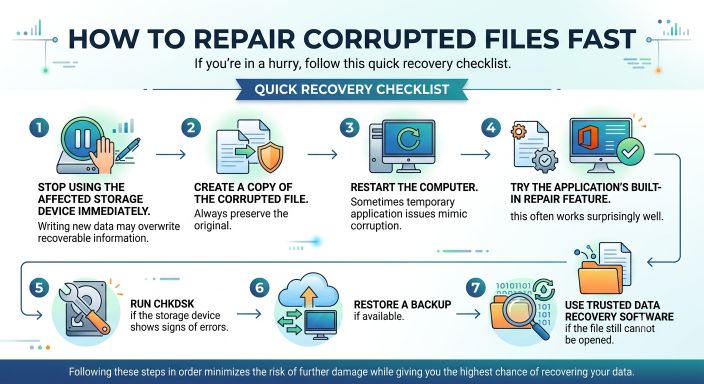
If you’re in a hurry, follow this quick recovery checklist.
Step 1
Stop using the affected storage device immediately.
Writing new data may overwrite recoverable information.
Step 2
Create a copy of the corrupted file.
Always preserve the original.
Step 3
Restart the computer.
Sometimes temporary application issues mimic corruption.
Step 4
Try the application’s built-in repair feature.
For Office documents, this often works surprisingly well.
Step 5
Run CHKDSK if the storage device shows signs of errors.
Step 6
Restore a backup if available.
Step 7
Use trusted data recovery software if the file still cannot be opened.
Following these steps in order minimizes the risk of further damage while giving you the highest chance of recovering your data.
Best Data Recovery Software for Corrupted Files
When built-in repair tools are unable to recover your files, specialized data recovery software can often retrieve damaged or deleted data. These applications scan storage devices for recoverable files, rebuild damaged file structures, and restore data whenever possible.
The table below compares some of the most popular recovery tools.
| Software | Best For | Operating System | Free Version |
|---|---|---|---|
| Recuva | Deleted files and basic recovery | Windows | Yes |
| Disk Drill | File recovery from HDDs, SSDs, USB drives | Windows, macOS | Yes |
| EaseUS Data Recovery Wizard | Recovering documents, photos, and videos | Windows, macOS | Limited |
| Stellar Data Recovery | Office documents and professional recovery | Windows, macOS | Trial |
| Wondershare Recoverit | Multimedia and formatted drive recovery | Windows, macOS | Trial |
Although these applications can recover many damaged files, none can guarantee success. Recovery depends on how much of the original data still exists and whether it has been overwritten.
If the file is extremely valuable, such as business records or irreplaceable family photos, consider stopping all activity on the affected storage device and consulting a professional data recovery service.
Can Different Types of Files Be Repaired?
Not every file type responds to repair methods in the same way. Some formats contain built-in redundancy, while others become unreadable after only minor damage.
| File Type | Repair Possible? | Notes |
|---|---|---|
| Word (.doc/.docx) | ✅ Often | Microsoft Word includes Open and Repair. |
| Excel (.xls/.xlsx) | ✅ Often | Worksheets and formulas may be recovered. |
| PowerPoint (.ppt/.pptx) | ✅ Often | Individual slides can sometimes be extracted. |
| ✅ Usually | Minor corruption can often be repaired. | |
| ZIP/RAR | ✅ Sometimes | Archive repair works if headers are intact. |
| Images (JPG, PNG) | ✅ Sometimes | Damaged headers may be repairable. |
| Videos (MP4, MOV, AVI) | ✅ Sometimes | Specialized repair software may rebuild video indexes. |
| Audio Files | ✅ Sometimes | Minor corruption may only affect portions of playback. |
| Database Files | ⚠ Depends | Recovery usually requires database-specific tools. |
The sooner you begin recovery, the better your chances of repairing these file types successfully.
When File Recovery Is No Longer Possible
Unfortunately, not every corrupted file can be repaired. Some situations permanently destroy the underlying data.
Recovery becomes extremely difficult or impossible when:
- The file has been overwritten by new data.
- The storage device has severe physical damage.
- Important portions of the file have been permanently erased.
- The file has been encrypted by ransomware without an available decryption key.
- Multiple repair attempts have overwritten the original damaged file.
- The storage media has experienced catastrophic failure.
If none of your repair methods work, avoid repeatedly saving or editing the damaged file. Keeping the original intact gives professional recovery services the best chance of extracting usable data.
How to Prevent File Corruption
Preventing file corruption is much easier than repairing damaged files. A few simple habits can dramatically reduce your risk of data loss.
Save Your Work Frequently
Applications can crash unexpectedly. Saving your work regularly reduces the amount of information that could be lost.
Many Office applications also include AutoSave and AutoRecover features that should remain enabled.
Maintain Regular Backups
Backups remain the best protection against file corruption.
A good backup strategy includes:
- External hard drives
- Cloud storage
- Network attached storage (NAS)
- Automatic scheduled backups
Following the 3-2-1 backup rule—three copies of your data, stored on two different types of media, with one copy kept off-site—provides excellent protection against data loss.
Use Reliable Antivirus Software
Malware remains one of the leading causes of file corruption.
Keep your antivirus software updated and perform regular system scans to detect malicious software before it damages your files.
Shut Down Your Computer Properly
Avoid forcing your computer to power off during updates or while files are being saved.
Unexpected shutdowns interrupt write operations and may leave files incomplete.
Safely Remove External Storage
Always eject USB drives, memory cards, and external hard drives before disconnecting them.
Removing storage devices during active file transfers is one of the most common causes of corrupted files.
Monitor Storage Device Health
Hard drives and SSDs eventually wear out.
If you notice:
- Clicking sounds
- Frequent read/write errors
- Slow performance
- Windows requesting disk repairs
Back up your data immediately and replace the failing drive before permanent data loss occurs.
Keep Software Updated
Software updates often include bug fixes that improve file handling and reduce corruption caused by application errors.
Keeping your operating system and applications current is an easy way to reduce risk.
Frequently Asked Questions
What happens if a file is corrupted?
A corrupted file may fail to open, display error messages, contain missing content, crash the application, or become completely unreadable depending on the extent of the damage.
How do I know if a file is corrupted?
Common signs include error messages, unreadable content, unexpected application crashes, missing data, unusual file sizes, or files that suddenly stop opening.
Can a corrupted file be repaired?
Yes. Many corrupted files can be repaired using built-in repair tools, backups, disk repair utilities, or specialized file recovery software. Success depends on how severely the file has been damaged.
Can you uncorrupt a corrupt file?
Not literally. Repair tools rebuild damaged file structures or recover usable data. The original corruption isn’t simply reversed; instead, the damaged portions are repaired whenever possible.
Why do files become corrupted?
Common causes include power failures, improper shutdowns, failing hard drives, SSD wear, malware, interrupted downloads, faulty USB drives, software bugs, and filesystem errors.
Can Windows repair corrupted files?
Yes. Windows includes built-in utilities such as CHKDSK for repairing disk errors and System File Checker (SFC) for restoring damaged Windows system files.
Does restarting a computer fix corrupted files?
Restarting rarely repairs actual file corruption, but it can resolve temporary software issues that prevent files from opening correctly.
Can viruses corrupt files?
Yes. Many viruses and ransomware attacks intentionally modify, encrypt, or destroy files, making them inaccessible without proper recovery methods.
Should I delete a corrupted file?
Not immediately. Make a backup copy first and attempt repair or recovery. Deleting the original may eliminate your last opportunity to recover important data.
Final Thoughts
File corruption is an unfortunate reality of modern computing, but it doesn’t always mean your data is lost forever. Many corrupted files can be repaired using built-in application features, Windows repair tools, backups, or trusted data recovery software. The key is to stop using the affected file or storage device as soon as you notice a problem, create a copy of the damaged file, and work through recovery methods in a logical order.
More importantly, prevention is far easier than recovery. Regular backups, proper system shutdowns, updated software, healthy storage devices, and reliable antivirus protection can significantly reduce the chances of experiencing file corruption in the future.
If you ever need to intentionally create damaged files for software testing, upload validation, cybersecurity training, or quality assurance, tools like those available on Corruptafile.org can help generate controlled file corruption without affecting your original data.