Few things are more frustrating than opening an important document, photo, video, or archive file and receiving an error message stating that the file is corrupt. Whether it is a work presentation, family photo collection, business database, or ZIP archive, file corruption can make data inaccessible and potentially lead to permanent information loss.
Understanding the meaning of a corrupted file, the causes of data corruption, and the available recovery options can help minimize damage and improve your chances of restoring lost information.
In this guide, you’ll learn what a corrupted file is, why files become corrupted, how to identify damaged files, whether your data can be recovered, and the best methods for fixing or removing corrupted files.
What Is a Corrupted File?
A corrupted file is a file whose contents have become damaged, altered, incomplete, or unreadable. When corruption occurs, the file no longer matches its original structure and cannot be processed correctly by the software designed to open it.
For example:
- A Microsoft Word document may refuse to open.
- A PDF may display blank pages.
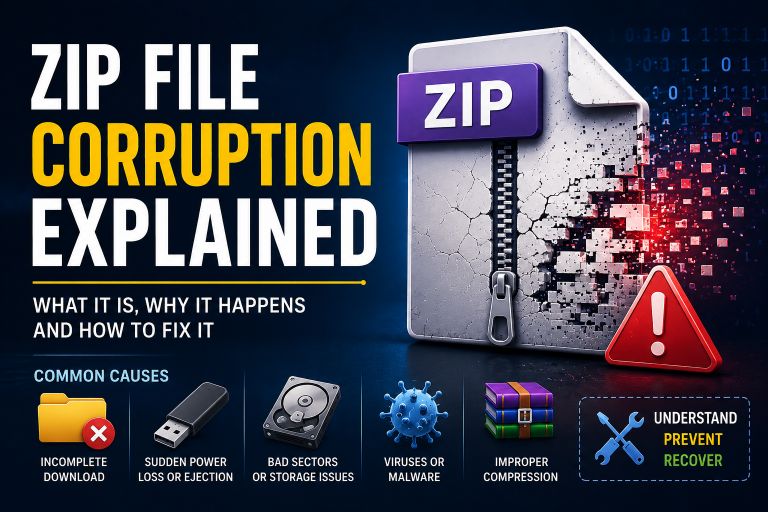
- A ZIP archive may report extraction errors.
- A video file may freeze or fail to play.
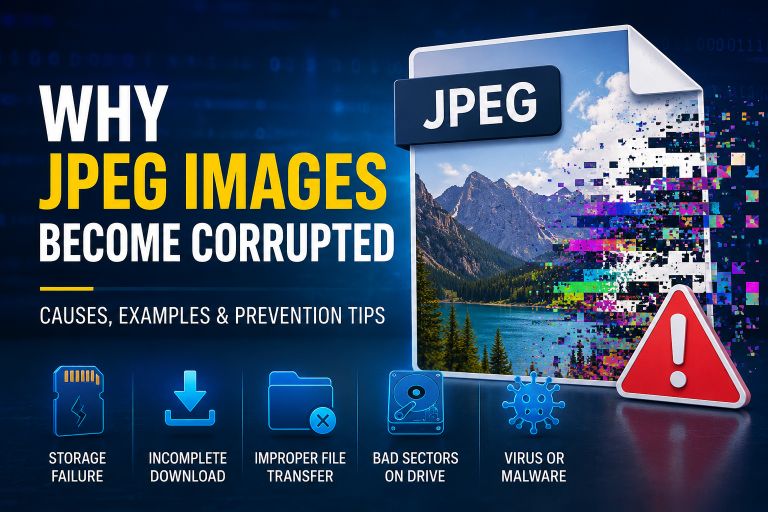
- An image may appear distorted or partially missing.
In simple terms, a corrupted file contains data that has been damaged in a way that prevents normal access.
File Corrupted Meaning
The phrase “file corrupted” means that the data stored within a file has become altered, damaged, or incomplete.
When a file becomes corrupted:
- Its contents may change unexpectedly.
- Important data may be missing.
- The file structure may break.
- Software may fail to read it.
Common error messages include:
- File is corrupted and cannot be opened.
- Unexpected end of file.
- Archive is damaged.
- File format not recognized.
- Cannot read file.
- Data error (cyclic redundancy check).
These errors indicate that the software detected inconsistencies within the file.
Corrupt Meaning in Computing
In general language, the word “corrupt” means damaged, altered, or degraded from its original state.
In computing, corruption refers to the unintended modification of digital data.
Examples include:
- Missing file segments
- Altered binary data
- Damaged metadata
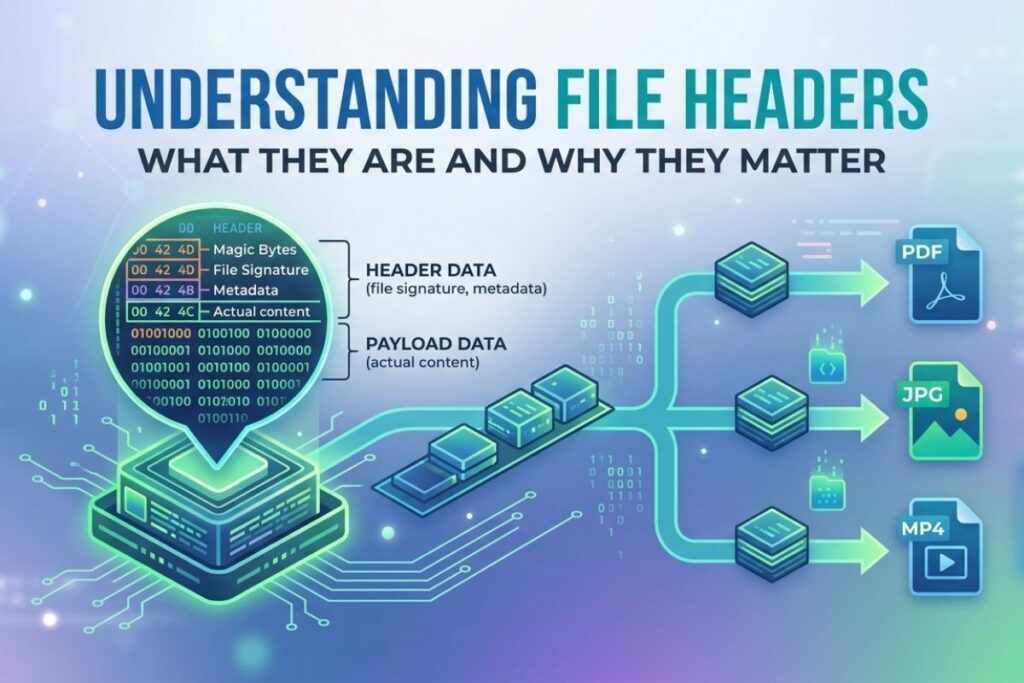
- Incorrect file headers
- Incomplete downloads
Any change that prevents software from correctly interpreting the file is considered corruption.
Corrupt Definition
Technical Definition
Corruption is the unintended alteration of data that causes information to become inaccurate, incomplete, inconsistent, or unusable.
Practical Definition
A corrupted file is simply a file that no longer works correctly because part of its data has been damaged.
Understanding Data Corruption

Data corruption is the broader process that leads to corrupted files.
Rather than affecting a single file, data corruption can occur at various levels:
File-Level Corruption
Affects individual files.
Examples:
- Word documents
- PDFs
- Videos
- ZIP archives
File System Corruption
Affects how files are organized on storage devices.
Examples:
- Missing directories
- Broken file paths
- Incorrect file allocations
Storage Device Corruption
Occurs when physical storage media develops problems.
Examples:
- Bad sectors on hard drives
- Failing SSD cells
- Damaged memory cards
Database Corruption
Impacts structured data systems.
Examples:
- Customer databases
- Application data stores
- Financial records
Why Is My File Corrupt?
There are many possible causes of file corruption.
1. Power Failures
Unexpected shutdowns during saving operations are among the most common causes.
When power is lost:
- Data may only be partially written.
- File structures may remain incomplete.
- Storage operations may be interrupted.
2. System Crashes
Operating system crashes can interrupt active write operations.
Examples:
- Blue Screen of Death (BSOD)
- Kernel panic
- Application crashes
3. Faulty Storage Devices
Storage devices degrade over time.
Common examples:
- Aging hard drives
- Worn SSD cells
- Damaged USB drives
- Failing SD cards
4. Malware and Viruses
Malicious software can intentionally modify files.
Examples:
- Ransomware encryption
- Virus infections
- Trojan attacks
5. Improper File Transfers
Interruptions during copying or downloading may leave files incomplete.
Examples:
- Network disconnections
- USB removal during transfer
- Interrupted downloads
6. Software Bugs
Programming errors can generate corrupted files.
Examples:
- Application crashes during save operations
- Memory handling issues
- Incompatible software versions
7. Hardware Failures
Faulty hardware components can corrupt data.
Examples:
- Defective RAM
- Motherboard failures
- Controller malfunctions
8. Human Error
Users sometimes accidentally damage files.
Examples:
- Editing binary files
- Using incompatible conversion tools
- Overwriting important data
Signs That a File Is Corrupted
Corrupted files often exhibit recognizable symptoms.
Common Warning Signs
- File won’t open
- Program crashes when opening file
- Missing content
- Garbled text
- Distorted images
- Broken videos
- ZIP extraction failures
- Unexpected file size changes
Error Messages
Typical errors include:
- File format invalid
- Archive corrupted
- Cannot access file
- Read error
- Data error
- Checksum mismatch
What Is a Corrupted File and Can My Data Be Recovered?
This is one of the most common questions users ask.
The answer depends on the severity of corruption.
Recovery Is Often Possible When:
- Only a small portion of the file is damaged.
- Backup copies exist.
- Metadata remains intact.
- The storage device is still functional.
Recovery May Be Difficult When:
- Large portions of the file are overwritten.
- The storage device has severe physical damage.
- Encryption keys are lost.
- Critical file structures are destroyed.
Recovery Success Rates
| Corruption Type | Recovery Chance |
|---|---|
| Minor file damage | High |
| Incomplete download | Very High |
| Header corruption | Moderate to High |
| Bad sectors | Moderate |
| Severe physical damage | Low |
| Overwritten data | Very Low |
How to Fix Corrupted Files
Depending on the file type, several recovery methods may help.
Restore From Backup
The fastest solution is restoring a clean backup.
Check:
- Cloud storage
- External drives
- Backup software
- Version history
Re-download the File
If the file was downloaded from the internet:
- Delete the damaged copy.
- Download again.
- Verify file integrity.
Use Built-In Repair Features
Many applications include repair functions.
Examples:
- Microsoft Office Repair
- PDF recovery tools
- ZIP archive repair
Run Disk Checking Utilities
Windows:
chkdsk /fThis can repair file system errors.
Scan for Malware
Use antivirus software to ensure malware isn’t causing corruption.
Recover Previous Versions
Windows and cloud storage providers often maintain file history.
Use Specialized Recovery Software
Tools may reconstruct damaged files by repairing:
- Headers
- Metadata
- Missing sectors
How to Identify Corrupted Files
Before attempting repairs, you should identify affected files.
Method 1: Check Error Messages
Opening errors often indicate corruption.
Method 2: Compare File Sizes
Unexpectedly small or large files may be damaged.
Method 3: Verify Checksums
Checksums help confirm file integrity.
Popular algorithms:
- MD5
- SHA-1
- SHA-256
If checksums differ from the original file, corruption likely occurred.
Method 4: Use System Logs
Windows Event Viewer can reveal disk or file errors.
Method 5: Scan Storage Devices
Disk scanning tools can locate bad sectors and damaged files.
How to Delete Corrupted Files
Sometimes corrupted files cannot be repaired and must be removed.
Method 1: Delete Normally
Try:
- Right-click → Delete
- Shift + Delete
Method 2: Use Command Prompt
Windows:
del filename.extFor directories:
rmdir /s foldernameMethod 3: Safe Mode
Booting into Safe Mode may allow deletion of locked corrupted files.
Method 4: Disk Repair First
Run:
chkdsk /fThen attempt deletion again.
Method 5: Third-Party File Unlockers
Some utilities can remove files locked by damaged processes.
How to Prevent Data Corruption
Prevention is easier than recovery.
Follow the 3-2-1 Backup Rule
Maintain:
- 3 copies of data
- 2 different storage media
- 1 offsite backup
Use Reliable Storage Devices
Replace aging drives before failure occurs.
Avoid Sudden Shutdowns
Use:
- UPS systems
- Surge protectors
- Proper shutdown procedures
Keep Software Updated
Updates often fix bugs that can corrupt files.
Scan for Malware Regularly
Security software helps prevent malicious file damage.
Verify Important Downloads
Use checksums whenever available.
Conclusion
A corrupted file is a file whose data has become damaged, altered, incomplete, or unreadable. Data corruption can occur due to power failures, hardware issues, malware infections, software bugs, storage device failures, or interrupted transfers.
Fortunately, not all corruption results in permanent data loss. Many corrupted files can be repaired using backups, built-in recovery features, disk repair tools, or specialized recovery software. Identifying corruption early significantly improves the chances of successful recovery.
The best defense against file corruption is prevention: maintain regular backups, use reliable storage hardware, protect systems from malware, and safely handle file transfers. By following these practices, you can greatly reduce the risk of losing valuable data to corruption.