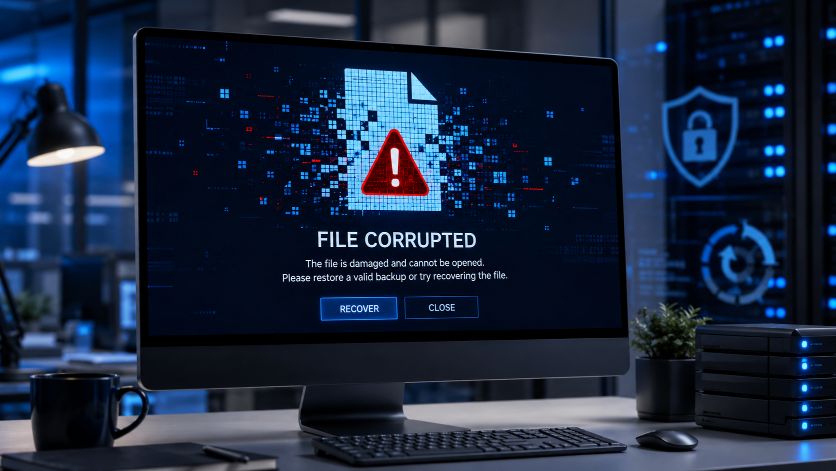
When people think about malware, they often imagine viruses that slow down a computer or display annoying pop-ups. While that still happens, modern malware can do much more. Some types are specifically designed to damage, encrypt, delete, or corrupt files, making them impossible to use.
Whether it’s a family photo, an important work document, or a video you’ve been editing for hours, malware can make your files inaccessible in just a few moments.
In this article, you’ll learn how malware corrupts files, the different types of malicious software involved, warning signs to watch for, and the best ways to protect your data.
What Is Malware?
Malware is short for malicious software. It refers to any program created to harm a computer, steal information, or disrupt normal operations.
Not all malware behaves the same way. Some quietly collect information, while others intentionally damage files or prevent you from accessing them.
Common types of malware include:
- Viruses
- Ransomware
- Trojans
- Worms
- Spyware
- Rootkits
Each type works differently, but many can affect your files directly or indirectly.
Can Malware Corrupt Files?
Yes.
Malware can corrupt files in several ways. Sometimes the damage is intentional, while in other cases it happens as a side effect of malicious activity.
For example, ransomware encrypts files so they cannot be opened without a decryption key. Other malware may overwrite file data, modify important file structures, or delete critical information needed to open the file.
The result is often the same: your files stop working.
How Malware Corrupts Files
Overwriting File Data
Some malware writes new data over existing files.
Even changing a small part of a file can make it unreadable, especially if the file header or internal structure is affected.
Encrypting Files
Ransomware is one of the most well-known examples.
Instead of deleting files, it encrypts them using strong encryption algorithms. Without the correct decryption key, the files appear corrupted because normal applications cannot read them.
Although encrypted files are technically different from damaged files, the user experience is often similar—they won’t open.
Modifying File Headers
Many file formats begin with a file header that identifies the file type.
If malware changes or destroys this header, software may display messages such as:
- Unknown file format
- Invalid file
- Unsupported format
- Cannot open file
Even if most of the file data is still present, a damaged header can make the file unusable.
Interrupting File Operations
Some malware consumes large amounts of system resources or causes applications to crash while files are being saved.
If a document, image, or video isn’t written completely, the saved file may become corrupted.
Damaging the File System
Advanced malware may attack the file system itself.
If directory information or file allocation data is damaged, files may disappear, become inaccessible, or appear corrupted even though parts of the original data still exist.
Try More File Corruption Tools
Types of Malware That Can Affect Files
Ransomware
Ransomware encrypts files and demands payment for a decryption key.
It often targets:
- Documents
- Photos
- Videos
- Databases
- Backups
This is one of the most damaging forms of malware because it can affect thousands of files within minutes.
File-Infector Viruses
These viruses attach themselves to existing files, especially executable programs.
As they spread, they may alter file contents and cause applications to stop working correctly.
Trojans
A Trojan disguises itself as legitimate software.
Once installed, it may download additional malware, modify files, or provide attackers with remote access to your computer.
Worms
Worms spread automatically across networks.
Although many focus on replication, some also damage files or install other malware that does.
Signs That Malware May Have Corrupted Your Files
You might notice one or more of the following:
- Files suddenly won’t open.
- File extensions have changed.
- Documents display unreadable content.
- Photos appear damaged or incomplete.
- Videos stop playing.
- New error messages appear when opening files.
- Your antivirus reports suspicious activity.
- Large numbers of files become inaccessible at the same time.
If multiple unrelated files fail simultaneously, malware is one possible cause.
What Should You Do If You Suspect Malware?
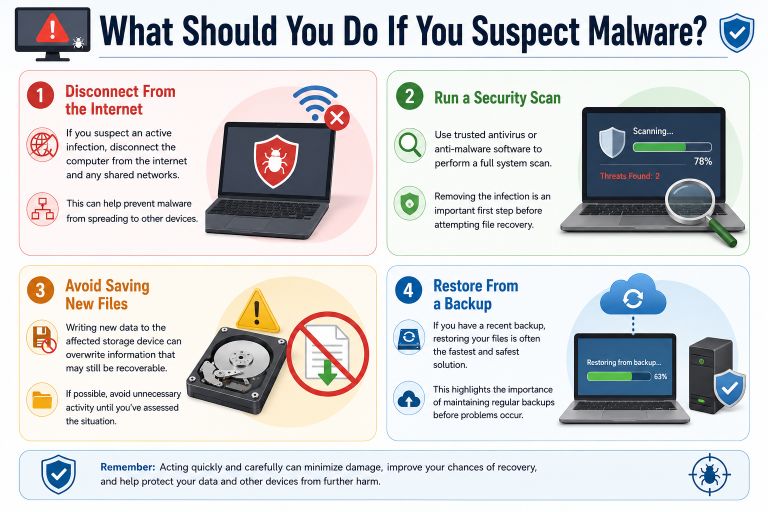
Disconnect From the Internet
If you suspect an active infection, disconnect the computer from the internet and any shared networks.
This can help prevent malware from spreading to other devices.
Run a Security Scan
Use trusted antivirus or anti-malware software to perform a full system scan.
Removing the infection is an important first step before attempting file recovery.
Avoid Saving New Files
Writing new data to the affected storage device can overwrite information that may still be recoverable.
If possible, avoid unnecessary activity until you’ve assessed the situation.
Restore From a Backup
If you have a recent backup, restoring your files is often the fastest and safest solution.
This highlights the importance of maintaining regular backups before problems occur.
Can Corrupted Files Be Repaired After Malware?
Sometimes.
Recovery depends on:
- The type of malware involved.
- How much damage was done.
- Whether the original data still exists.
- Whether backups are available.
Files affected by minor corruption may be repairable using specialized recovery tools.
However, if malware has permanently overwritten the original data, complete recovery may not be possible.
🛠️ Popular Corruption Tools
📚 Helpful Guides
How to Protect Your Files From Malware
Good security habits greatly reduce the risk of file corruption.
Here are some practical steps:
- Keep your operating system updated.
- Install reputable antivirus software.
- Download software only from trusted sources.
- Avoid opening unexpected email attachments.
- Be cautious with unknown links.
- Create regular backups of important files.
- Keep one backup offline or disconnected when not in use.
- Scan USB drives before opening files.
A little prevention is much easier than recovering lost data.
Malware vs Accidental File Corruption
Not every corrupted file is caused by malware.
Files can also become damaged because of:
- Power failures
- Failing hard drives
- Bad sectors
- Interrupted downloads
- Software crashes
- Improperly removed USB drives
If you notice corruption without any other signs of infection, the cause may be hardware or software rather than malicious activity.
Why Testing With Corrupted Files Is Useful
Software developers, IT professionals, cybersecurity researchers, and students often need damaged files to test how applications respond to corruption.
Using intentionally corrupted files allows them to:
- Test recovery software.
- Verify backup systems.
- Improve error handling.
- Evaluate upload validation.
- Study file corruption without risking important data.
Creating corrupted copies for testing is much safer than damaging original files.
Conclusion
Malware is one of the many causes of file corruption, but it isn’t the only one. Depending on its purpose, malicious software may encrypt files, overwrite data, modify file headers, or damage the file system itself.
Fortunately, many infections can be prevented through regular software updates, trusted antivirus protection, safe browsing habits, and reliable backups. Even when files become damaged, acting quickly improves the chances of successful recovery.
Protecting your computer isn’t just about avoiding malware—it’s also about protecting the files that matter most.
Suggestions
- What Is a Corrupted File?
- What Is Bit Rot? Understanding Silent Data Corruption
- APFS Reliability: Is Apple’s File System Safe for Your Data?
- Can AI Detect Corrupted Files?
- The Science Behind File Corruption
- What Is a Binary File?
- Unknown File Format Errors
- NTFS vs FAT32 Reliability: Which File System Is Better for Your Data?
- How Videos Become Corrupted
- Why JPEG Images Become Corrupted
- Recovering Corrupted Photos