When Windows starts crashing unexpectedly, displaying blue screen errors, refusing to install updates, or showing messages about corrupted files, you’ll often come across three built-in repair tools: DISM, System File Checker (SFC), and CHKDSK.
Because all three tools help repair Windows, many users assume they do the same job. In reality, each utility is designed to solve a different type of problem. Using the wrong one may not fix your issue, while using them in the proper order can often restore Windows without requiring a complete reinstallation.
In this guide, you’ll learn what DISM, SFC, and CHKDSK do, how they differ, when to use each one, and the recommended order for running them.
Why Windows Includes Multiple Repair Tools
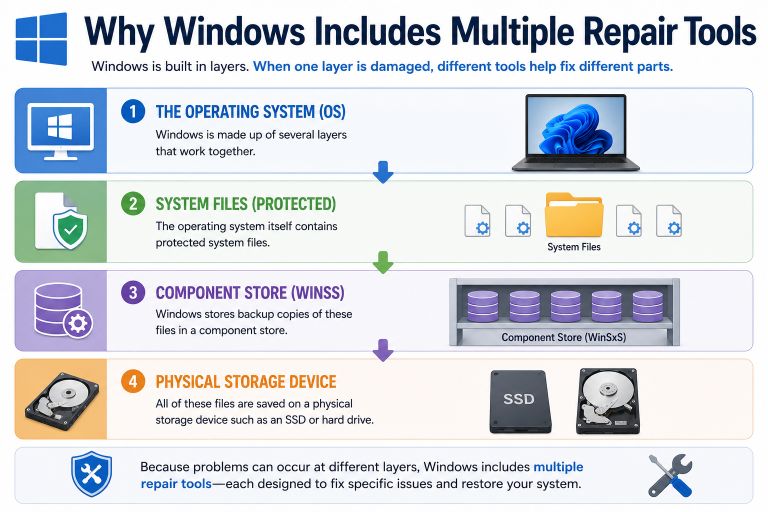
Windows is made up of several layers that work together.
- The operating system itself contains protected system files.
- Windows stores backup copies of these files in a component store.
- All of these files are saved on a physical storage device such as an SSD or hard drive.
Problems can occur at any of these layers. Microsoft provides different repair tools because each one focuses on a specific part of the system.
- DISM repairs the Windows component store.
- SFC repairs corrupted Windows system files.
- CHKDSK checks the health of the file system and storage drive.
Understanding which layer is affected helps you choose the right tool.
What Is DISM?
Deployment Image Servicing and Management (DISM) is a Windows command-line utility that repairs the Windows image, also known as the component store.
The component store contains clean copies of Windows system files. When System File Checker needs to replace a damaged file, it retrieves the replacement from this store.
If the component store itself becomes corrupted, SFC may fail because it has no healthy files available to restore.
DISM repairs this underlying repository by verifying Windows components and replacing damaged data using Windows Update or another repair source.
A commonly used command is:
DISM /Online /Cleanup-Image /RestoreHealthRunning DISM is especially useful after failed Windows updates, component corruption, or when SFC reports that it cannot repair certain files.
What Is System File Checker (SFC)?
System File Checker, commonly called SFC, scans protected Windows operating system files for corruption, deletion, or unauthorized changes.
When damaged files are detected, SFC replaces them using clean copies stored in the Windows component store.
The most frequently used command is:
sfc /scannowSFC is ideal for repairing:
- Missing DLL files
- Corrupted Windows system files
- Operating system instability
- Startup issues
- Unexpected Windows errors
Unlike DISM, SFC does not repair the component store itself.
Also Read: What Is System File Checker? How SFC Scannow Fixes Corrupt Windows Files
What Is CHKDSK?
CHKDSK (Check Disk) is a disk repair utility that examines the file system and the physical storage device.
Instead of repairing Windows files, CHKDSK focuses on detecting problems such as:
- File system corruption
- Bad sectors
- Lost clusters
- Directory errors
- Disk allocation issues
If storage errors are causing Windows corruption, CHKDSK may prevent additional damage by identifying and isolating problematic sectors.
A commonly used command is:
chkdsk C: /f /rThe scan may require a system restart because Windows cannot repair the active system drive while it is in use.
DISM vs SFC vs CHKDSK: Key Differences
Although these tools often work together, they repair different parts of Windows.
| Feature | DISM | SFC | CHKDSK |
|---|---|---|---|
| Primary purpose | Repair Windows component store | Repair Windows system files | Repair file system and storage errors |
| Repairs Windows files | Yes | Yes | No |
| Repairs component store | Yes | No | No |
| Repairs disk errors | No | No | Yes |
| Detects bad sectors | No | No | Yes |
| Requires restart | Usually No | Usually No | Often Yes |
| Best used for | Update failures and image corruption | Corrupted Windows files | Hard drive or SSD errors |
Each tool solves a different problem, so they should not be considered interchangeable.
When Should You Use DISM?
Run DISM when:
- Windows Update repeatedly fails.
- SFC cannot repair corrupted files.
- The component store is damaged.
- Windows features fail to install.
- System image corruption is suspected.
DISM is generally the first repair tool to use when Windows itself appears damaged.
When Should You Use SFC?
SFC is appropriate when Windows is experiencing software-related problems caused by damaged system files.
Examples include:
- Frequent application crashes
- Missing DLL errors
- Windows features not working correctly
- Unexpected operating system behavior
- Startup problems
SFC is often the quickest repair tool because it scans only protected system files.
When Should You Use CHKDSK?
CHKDSK should be used when storage-related problems are suspected.
Common signs include:
- Slow disk performance
- Clicking or unusual drive noises
- File system errors
- Frequent disk read or write failures
- “Drive needs to be scanned” messages
- Unexpected shutdowns caused by disk errors
If the physical drive is failing, CHKDSK can identify bad sectors, but it cannot repair damaged hardware.
Should You Run DISM Before SFC?
Yes. Microsoft generally recommends running DISM before SFC if Windows reports that corrupted files cannot be repaired.
The recommended order is:
- Run:
DISM /Online /Cleanup-Image /RestoreHealth- After DISM completes successfully, run:
sfc /scannowThis sequence ensures that SFC has access to a healthy component store from which to restore corrupted system files.
Can You Run CHKDSK with SFC and DISM?
Absolutely.
These tools complement one another because they repair different parts of Windows.
A common troubleshooting sequence is:
- Run CHKDSK if disk errors are suspected.
- Run DISM to repair the Windows component store.
- Run SFC to repair protected system files.
Following this order helps address hardware, component store, and operating system corruption systematically.
Common Commands for DISM, SFC, and CHKDSK
DISM Commands
DISM /Online /Cleanup-Image /CheckHealthChecks whether corruption has been detected.
DISM /Online /Cleanup-Image /ScanHealthPerforms a more detailed scan.
DISM /Online /Cleanup-Image /RestoreHealthRepairs the Windows component store.
SFC Commands
sfc /scannowScans and repairs protected Windows system files.
sfc /verifyonlyChecks file integrity without making repairs.
CHKDSK Commands
chkdskChecks the disk without fixing errors.
chkdsk /fRepairs logical file system errors.
chkdsk /f /rRepairs errors and attempts to recover readable data from bad sectors.
Best Practices Before Running Repair Tools
To minimize the risk of data loss or interrupted repairs:
- Save all open work before starting a scan.
- Keep your laptop connected to power.
- Close unnecessary applications.
- Allow each scan to finish without interruption.
- Restart your computer if prompted.
- Back up important files if disk failure is suspected.
These precautions help ensure the repair process completes successfully.
Try More File Corruption Tools
Final Thoughts
Although DISM, SFC, and CHKDSK are all built into Windows, they are designed to solve different problems.
DISM repairs the Windows component store that holds healthy system file backups. SFC scans protected Windows files and replaces corrupted versions using those backups. CHKDSK checks the file system and storage device for logical errors and bad sectors.
Knowing the purpose of each tool makes troubleshooting much easier. For Windows corruption, start with DISM if the component store may be damaged, then run SFC to repair system files. If you suspect storage issues, include CHKDSK to examine the health of your drive.
Using these utilities together provides a reliable way to diagnose and repair many common Windows problems without reinstalling the operating system.