Windows relies on thousands of protected system files to start correctly, load drivers, run applications, and keep the operating system stable. If even one of these files becomes damaged, deleted, or modified, you may experience startup failures, random crashes, missing features, or error messages that seem impossible to diagnose.
Fortunately, Microsoft includes a built-in utility called System File Checker (SFC) that can detect and repair many of these problems automatically. Whether you’re troubleshooting Windows after a failed update or trying to fix unexplained system errors, SFC is often one of the first tools worth using.
In this guide, you’ll learn what the System File Checker is, what it does, whether SFC /scannow actually fixes corrupted files, and how to run it safely.
What Is System File Checker (SFC)?
System File Checker (SFC) is a command-line utility built into Microsoft Windows. It scans protected operating system files for corruption, missing data, or unauthorized modifications and replaces damaged files with clean copies stored by Windows.
The tool has been included in Windows for many years and is available in:
- Windows 11
- Windows 10
- Windows 8 and 8.1
- Windows 7
- Windows Server editions
Unlike third-party repair software, SFC focuses only on Windows system files. It does not repair personal documents, photos, videos, or application data.
Why Windows System Files Become Corrupted
System file corruption can happen for many reasons, even on a well-maintained computer.
Malware and Viruses
Some malware modifies or replaces important Windows files to gain deeper access to the operating system. Even after removing the malware, the damaged files may remain.
Power Failures
If your computer loses power while Windows is updating or writing system data, files can become incomplete or corrupted.
Failed Windows Updates
Interrupted or unsuccessful updates sometimes leave Windows components in an inconsistent state.
Hard Drive or SSD Issues
Bad sectors, failing storage devices, or file system errors can damage important operating system files over time.
Other possible causes include:
- Improper shutdowns
- Faulty RAM
- Driver conflicts
- Disk corruption
- Software installation failures
What Does the System File Checker Do?
The System File Checker performs several important tasks during a scan.
Scans Protected Windows System Files
SFC checks thousands of protected Windows files against Microsoft’s known-good versions.
Verifies File Integrity
The utility compares each protected file with the original version stored in the Windows component store. If differences are detected, the file is marked as corrupted.
Replaces Damaged Files Automatically
When possible, SFC replaces corrupted files with healthy copies without requiring manual intervention.
This process helps restore Windows to a stable state without reinstalling the operating system.
Does SFC Scannow Fix Corrupt Files?
Yes, SFC /scannow can repair many corrupted Windows system files automatically.
When you run:
sfc /scannowWindows performs a full integrity scan of protected system files. If corrupted versions are found and valid replacement files are available, SFC replaces them automatically.
What SFC Can Repair
SFC is effective for repairing:
- Missing Windows system files
- Corrupted DLL files
- Damaged operating system components
- Files modified by malware
- Certain update-related corruption
Many users notice improvements after running SFC, including:
- Reduced system crashes
- Successful Windows updates
- Fixed startup problems
- Restored Windows features
- Fewer unexpected error messages
What SFC Cannot Repair
SFC has limitations.
It cannot repair:
- Personal documents
- Photos
- Videos
- ZIP archives
- PDFs
- Third-party software files
- Physically damaged storage devices
If corruption exists outside protected Windows files, SFC will not resolve those issues.
When to Use DISM Before SFC
Sometimes SFC reports:
Windows Resource Protection found corrupt files but was unable to fix some of them.
This often means the Windows component store itself has become damaged.
In that case, Microsoft recommends running the Deployment Image Servicing and Management (DISM) tool first:
DISM /Online /Cleanup-Image /RestoreHealthAfter DISM finishes successfully, run:
sfc /scannowagain.
How to Run System File Checker in Windows
Running SFC only takes a few minutes.
Step 1: Open Command Prompt as Administrator
- Press the Windows key.
- Type cmd.
- Right-click Command Prompt.
- Select Run as administrator.
You can also use Windows Terminal (Admin) in Windows 11.
Step 2: Run the SFC Command
Enter:
sfc /scannowThen press Enter.
The scan begins immediately.
Step 3: Wait for the Scan to Finish
The scan typically takes between 10 and 30 minutes, depending on your computer’s speed and storage device.
Avoid closing the Command Prompt while the verification is in progress.
Step 4: Restart Your Computer
If SFC repairs any files, restart Windows to ensure the repaired components are loaded correctly.
Understanding SFC Scan Results
After the scan completes, you’ll usually see one of these messages.
Windows Resource Protection did not find any integrity violations.
No corrupted system files were detected.
Windows Resource Protection found corrupt files and successfully repaired them.
Corrupted files were repaired successfully. Restart your PC if prompted.
Windows Resource Protection found corrupt files but was unable to fix some of them.
Some files could not be repaired. Run DISM, then execute SFC /scannow again.
Windows Resource Protection could not perform the requested operation.
This may indicate disk errors or issues with the Windows Recovery Environment. Running CHKDSK or starting Windows in Safe Mode may help.
Common SFC Commands
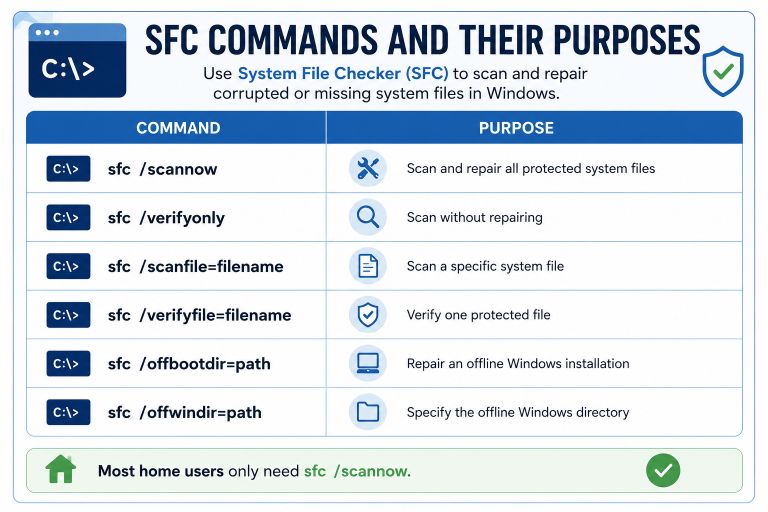
While sfc /scannow is the most commonly used option, several other commands are available.
| Command | Purpose |
|---|---|
sfc /scannow | Scan and repair all protected system files |
sfc /verifyonly | Scan without repairing |
sfc /scanfile=filename | Scan a specific system file |
sfc /verifyfile=filename | Verify one protected file |
sfc /offbootdir | Repair an offline Windows installation |
sfc /offwindir | Specify the offline Windows directory |
Most home users only need sfc /scannow.
SFC vs DISM: What’s the Difference?
Although both tools repair Windows, they work differently.
| System File Checker (SFC) | DISM |
| Repairs protected Windows files | Repairs the Windows component store |
| Uses local cached copies | Can download replacement files from Windows Update |
| Faster scan | Usually takes longer |
| Best for routine corruption | Best when SFC cannot repair files |
For stubborn corruption, Microsoft recommends running DISM first, followed by SFC.
Tips to Prevent Windows File Corruption
While file corruption cannot always be avoided, these habits reduce the risk:
- Keep Windows updated.
- Shut down your computer properly.
- Use a reliable antivirus program.
- Back up important files regularly.
- Check your storage drive for errors periodically.
- Avoid interrupting Windows updates.
- Use a UPS if power outages are common.
Preventive maintenance is often easier than recovering from severe system corruption.
Try More File Corruption Tools
Conclusion
The System File Checker (SFC) is one of the most useful built-in troubleshooting tools in Windows. It scans protected operating system files, detects corruption, and automatically replaces damaged files whenever possible.
For many common Windows issues, running sfc /scannow is a safe first step that can restore stability without reinstalling the operating system. If SFC cannot repair every file, following it with the DISM tool often resolves deeper component store corruption.
Although SFC won’t recover damaged personal documents or repair failing hardware, it remains an essential utility for maintaining the health and reliability of Windows. Knowing how to use it can save time, reduce troubleshooting effort, and help keep your system running smoothly.