Causes, Problems, and Easy Fixes
If you’ve ever seen a warning saying “Your disk is running out of space”, it’s a sign that your C drive is almost full. Many Windows users ignore this message until their computer becomes slow or starts showing errors.
The C drive is where Windows, installed programs, and many important system files are stored. When it runs out of free space, your PC may struggle to perform even simple tasks.
In this guide, we’ll explain what happens when the C drive is full, why it happens, and how you can free up space to keep your computer running smoothly.
Why Is the C Drive Important?
The C drive is usually the main storage drive where Windows is installed. It contains:
- Windows operating system files
- Installed applications
- Temporary system files
- Windows Update files
- User folders like Desktop, Documents, and Downloads (unless moved)
- Virtual memory (page file)
- System Restore data
Windows constantly reads and writes data to the C drive. It also needs free space to perform updates and background tasks.
What Happens When the C Drive Is Full?
A full C drive can affect almost every part of your computer.
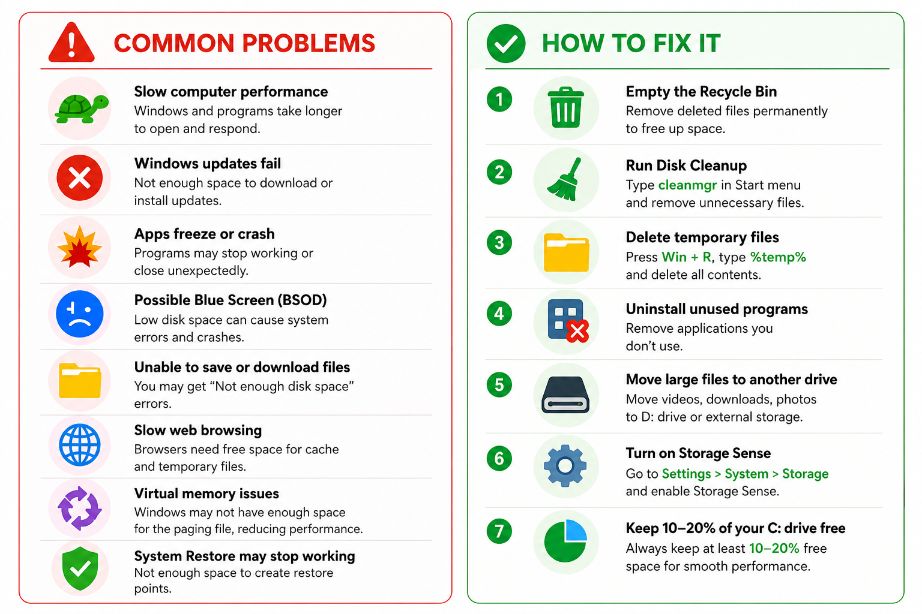
1. Your Computer Becomes Slow
One of the first signs is poor performance. Windows doesn’t have enough free space for temporary files and virtual memory, causing programs to open slowly and the system to feel sluggish.
Even simple tasks like opening File Explorer or launching a browser may take longer than usual.
2. Windows Updates May Fail
Windows Update needs free disk space to download and install updates.
If the C drive is nearly full, updates may fail with error messages or remain stuck during installation. Missing security updates can also leave your PC vulnerable to threats.
3. Programs Freeze or Crash
Many applications create temporary files while they are running. Without enough disk space, programs may stop responding, freeze unexpectedly, or crash.
This is especially common with:
- Video editing software
- Photo editing applications
- Games
- Large Office documents
- Web browsers with many open tabs
4. You May See “Low Disk Space” Warnings
Windows automatically warns users when storage becomes critically low.
These notifications are helpful, but ignoring them for too long can lead to bigger performance issues.
5. You Can’t Save New Files
If the drive reaches its limit, Windows may not be able to save:
- Documents
- Photos
- Videos
- Downloads
- Screenshots
Applications may also display “Not enough disk space” errors.
6. Web Browsing Becomes Slower
Browsers use cache files to speed up websites.
When storage is limited, browsers may struggle to store temporary data, leading to slower page loading and reduced performance.
7. Virtual Memory Stops Working Properly
Windows uses part of your storage as virtual memory (also called the paging file).
When the C drive is full, Windows may not have enough room to expand this file, which can cause:
- Slow multitasking
- Application crashes
- Memory-related errors
8. System Restore May Stop Creating Restore Points
System Restore requires free storage to save restore points.
If there’s not enough space, Windows may stop creating them, making it harder to recover from software problems.
9. Higher Risk of System Errors
Although a full drive doesn’t directly cause hardware failure, it can increase the chances of:
- Failed updates
- Corrupted temporary files
- Unexpected shutdown issues
- Boot problems in severe cases
Keeping some free space helps Windows work more reliably.
Common Reasons the C Drive Becomes Full
Several things can slowly fill your drive over time.
- Large Downloads folder
- Temporary files
- Windows Update cache
- Recycle Bin contents
- Old Windows installation files
- Installed software you no longer use
- Large games
- Photos and videos
- Cloud storage files synced locally
Many users are surprised to discover that old update files or temporary files are taking up several gigabytes of storage.
Also Read: Windows 11 July 14 Patch Tuesday Update
How to Free Up Space on the C Drive
Here are some simple ways to recover storage.
Empty the Recycle Bin
Files remain in the Recycle Bin until they’re permanently deleted.
Run Disk Cleanup
Search for Disk Cleanup in the Start menu and remove:
- Temporary files
- Windows Update Cleanup
- Delivery Optimization files
- Thumbnails
Delete Temporary Files
Press Windows + R, type:
%temp%Delete the files inside the folder. Skip any files that Windows says are currently in use.
Uninstall Programs You Don’t Need
Open:
Settings → Apps → Installed Apps
Remove software you no longer use.
Move Large Files
Transfer videos, photos, and other large files to:
- Another internal drive
- External hard drive
- USB drive
- Cloud storage
Turn On Storage Sense
Go to:
Settings → System → Storage
Enable Storage Sense to let Windows automatically clean temporary files and empty the Recycle Bin.
How Much Free Space Should the C Drive Have?
A good rule is to keep at least 10–20% of the C drive free.
For example:
| Drive Size | Recommended Free Space |
|---|---|
| 256 GB | 25–50 GB |
| 512 GB | 50–100 GB |
| 1 TB | 100–200 GB |
This gives Windows enough room for updates, virtual memory, and temporary files.
How to Check Available Disk Space
Checking your storage only takes a few seconds.
- Open File Explorer.
- Click This PC.
- Look under Devices and drives.
- Check the free space shown below your Local Disk (C:).
If the drive bar is red, your storage is critically low and should be cleaned up soon.
Suggestions
- What Is a Corrupted File?
- How to Add Password to a Folder
- DISM vs SFC vs CHKDSK
- Ransomware vs File Corruption
- Malware That Corrupts Files
- What Is Bit Rot? Understanding Silent Data Corruption
Final Thoughts
A full C drive doesn’t just reduce storage—it can slow down your entire computer. From failed Windows updates to crashing applications and slower performance, low disk space affects almost every part of Windows.
The good news is that most storage problems are easy to fix. Removing unnecessary files, uninstalling unused programs, and keeping at least 10–20% of your C drive free can help your PC stay fast, stable, and reliable.