Windows isn’t perfect. From time to time, you may see an error code while updating your PC, opening an application, or starting Windows. These codes might look confusing at first, but they often point to a specific problem and can help you find the right solution.
In this article, we’ll explain some of the most common Windows error codes, what they mean, and the steps you can take to fix them.
Why Does Windows Show Error Codes?
Windows uses error codes to identify what went wrong during a task. Instead of displaying a long technical message, it shows a unique code that helps users and technicians troubleshoot the issue.
Common causes include:
- Corrupted system files
- Failed Windows updates
- Driver problems
- Disk errors
- Missing permissions
- Network issues
- Malware infections
- Hardware failures
Understanding the error code is the first step toward fixing the problem.
Common Windows Error Codes and Their Fixes
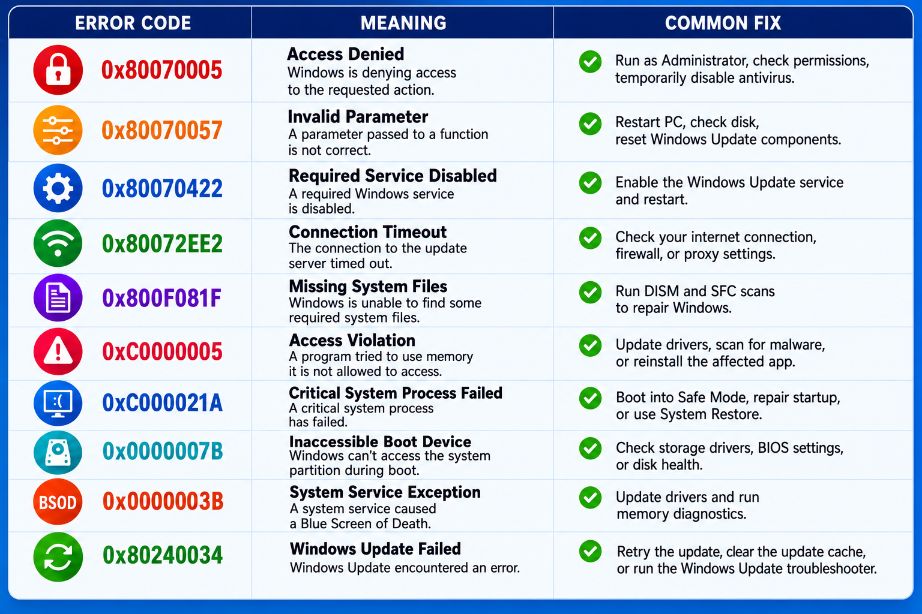
Error Code 0x80070005 – Access Denied
What it means
Windows doesn’t have permission to complete the requested action. This often happens during Windows Update or software installation.
Common causes
- Insufficient administrator permissions
- Antivirus software blocking access
- Corrupted Windows Update files
How to fix it
- Run the program as Administrator.
- Restart your computer.
- Temporarily disable third-party antivirus software.
- Check folder permissions.
- Run the Windows Update Troubleshooter if the issue occurs during updates.
Error Code 0x80070057 – Invalid Parameter
What it means
Windows received incorrect or invalid information while performing an operation.
Common causes
- Corrupted update files
- Disk problems
- Incorrect system settings
How to fix it
- Restart your PC.
- Run Disk Cleanup.
- Check the disk using CHKDSK.
- Reset Windows Update components if updates are failing.
Error Code 0x80070422 – Required Service Disabled
What it means
A Windows service needed for the operation has been turned off.
Common causes
- Windows Update service disabled
- Required background services stopped
How to fix it
- Open Services.
- Locate Windows Update.
- Set it to Automatic.
- Start the service and restart your PC.
Error Code 0x80072EE2 – Connection Timeout
What it means
Windows couldn’t connect to Microsoft’s servers within the allowed time.
Common causes
- Slow internet connection
- Firewall restrictions
- Proxy settings
- VPN issues
How to fix it
- Check your internet connection.
- Restart your router.
- Disable VPN temporarily.
- Review firewall or proxy settings.
Error Code 0x800F081F – Missing System Files
What it means
Windows cannot find the files needed to complete an update or repair.
Common causes
- Corrupted Windows image
- Missing update files
- Damaged system files
How to fix it
Open Command Prompt as Administrator and run:
DISM /Online /Cleanup-Image /RestoreHealthThen run:
sfc /scannowRestart your computer after both scans finish.
Error Code 0xC0000005 – Access Violation
What it means
A program tried to access memory that it wasn’t allowed to use.
Common causes
- Faulty drivers
- Corrupted software
- Malware
- Faulty RAM
How to fix it
- Update device drivers.
- Scan for malware.
- Reinstall the affected application.
- Run Windows Memory Diagnostic.
Error Code 0xC000021A – Critical System Process Failed
What it means
An essential Windows process stopped unexpectedly, causing Windows to crash.
Common causes
- Corrupted system files
- Failed updates
- Driver conflicts
How to fix it
- Boot into Safe Mode.
- Run Startup Repair.
- Perform System Restore.
- Run SFC and DISM scans.
Error Code 0x0000007B – Inaccessible Boot Device
What it means
Windows cannot access the drive that contains the operating system during startup.
Common causes
- Damaged boot files
- Storage driver problems
- BIOS configuration changes
- Failing SSD or HDD
How to fix it
- Check BIOS storage settings.
- Repair startup using Windows Recovery.
- Update storage drivers.
- Check disk health.
Error Code 0x0000003B – System Service Exception
What it means
A system service caused Windows to display a Blue Screen of Death (BSOD).
Common causes
- Outdated drivers
- Memory problems
- Corrupted system files
How to fix it
- Update drivers.
- Run Windows Memory Diagnostic.
- Run SFC and DISM.
- Install the latest Windows updates.
Error Code 0x80240034 – Windows Update Failed
What it means
Windows Update couldn’t complete successfully.
Common causes
- Corrupted update cache
- Internet interruptions
- Windows Update service issues
How to fix it
- Retry the update.
- Clear the Windows Update cache.
- Run the Windows Update Troubleshooter.
- Restart Windows Update services.
General Tips to Fix Windows Errors
Many Windows problems can be solved using a few basic troubleshooting steps.
Restart Your Computer
A simple restart often clears temporary issues and completes pending system tasks.
Keep Windows Updated
Install the latest Windows updates to receive bug fixes and security improvements.
Run System File Checker
Open Command Prompt as Administrator and run:
sfc /scannowThis checks and repairs corrupted Windows system files.
Use DISM
If SFC cannot repair all files, run:
DISM /Online /Cleanup-Image /RestoreHealthDISM repairs the Windows system image used by SFC.
Check Your Hard Drive
Run:
chkdsk /f /rThis scans your drive for file system errors and bad sectors.
Scan for Malware
Malware can damage system files and cause unexpected Windows errors. Running a full antivirus scan is always a good idea if errors appear suddenly.
When Should You Worry?
Most Windows error codes are software-related and can be fixed using the steps above.
However, if you continue to see the same error after trying multiple solutions, the issue could be related to failing hardware such as:
- SSD or hard drive
- RAM
- Motherboard
- Storage controller
In such cases, running hardware diagnostics or consulting a technician may be necessary.
Try More File Corruption Tools
Final Thoughts
Seeing a Windows error code can be frustrating, but these codes are designed to help identify the problem. Whether it’s a failed update, missing system files, or a startup issue, knowing what the error means makes troubleshooting much easier.
Before considering a full Windows reinstall, try the recommended fixes. In many cases, tools like SFC, DISM, CHKDSK, or the built-in troubleshooters can resolve the issue without losing your files.