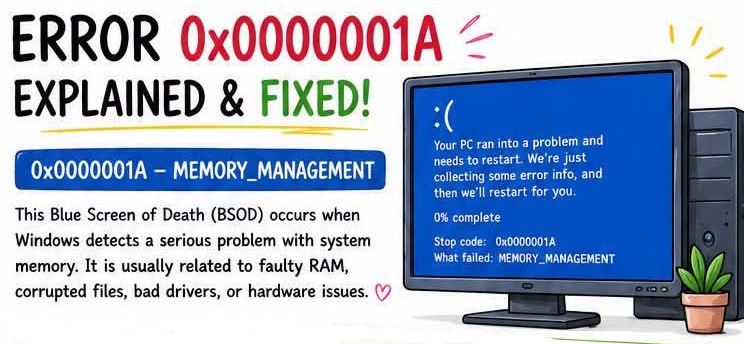
Seeing a Blue Screen of Death (BSOD) is never a pleasant experience, especially when your computer suddenly restarts and displays the MEMORY_MANAGEMENT stop code. One moment you’re working, gaming, or watching a video, and the next your PC crashes with a blue screen saying Stop Code: 0x0000001A.
At first, this error can seem alarming. Fortunately, it doesn’t always mean your computer has a serious hardware problem. In many cases, the issue is caused by corrupted system files, outdated drivers, faulty RAM, or disk errors. The good news is that most users can fix this error without reinstalling Windows.
In this guide, we’ll explain what the MEMORY_MANAGEMENT Blue Screen means, what causes it, and the steps you can take to fix it.
What Is the MEMORY_MANAGEMENT Error?
The MEMORY_MANAGEMENT error, also known as Stop Code 0x0000001A, is a Windows Blue Screen of Death (BSOD) that appears when Windows detects a serious problem while managing your computer’s memory.
Memory management is one of Windows’ most important tasks. Every program you open, every file you access, and every background process uses your computer’s memory. Windows constantly moves data between RAM, virtual memory, and storage to keep everything running smoothly.
If Windows detects that memory is corrupted, inaccessible, or behaving unexpectedly, it stops the system immediately and displays the MEMORY_MANAGEMENT error. This shutdown helps prevent further damage to your files or the operating system.
Although the error often points to RAM problems, faulty memory isn’t the only possible cause. Corrupted system files, storage issues, outdated drivers, or unstable hardware settings can also trigger this stop code.
Common Causes of Stop Code 0x0000001A
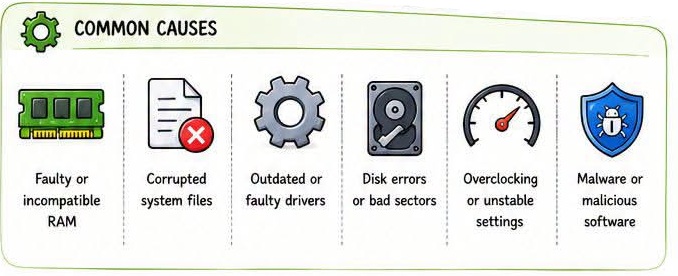
Several different problems can lead to the MEMORY_MANAGEMENT Blue Screen.
Faulty RAM
One of the most common causes is defective or failing RAM. If Windows cannot correctly read or write data stored in memory, it may stop the system to prevent data corruption.
Corrupted System Files
Windows relies on thousands of system files to manage memory and hardware resources. If some of these files become damaged due to malware, unexpected shutdowns, or failed updates, memory-related errors may appear.
Outdated or Faulty Drivers
Device drivers act as translators between Windows and your hardware. A buggy graphics driver, storage driver, or chipset driver can interfere with memory operations and trigger a BSOD.
Hard Drive or SSD Errors
If Windows cannot read important system files because of bad sectors or file system corruption, it may incorrectly report a memory management failure.
Overclocking
Running your CPU or RAM beyond its recommended speed can make the system unstable. Even if your computer seems to work normally most of the time, unstable overclocking can eventually lead to Blue Screen errors.
Malware
Some malicious software modifies system files or interferes with memory processes, leading to unexpected crashes.
Symptoms of the MEMORY_MANAGEMENT Error
Before the Blue Screen appears, you may notice warning signs such as:
- Random computer crashes
- Applications freezing unexpectedly
- Frequent Blue Screen errors
- Slow system performance
- Unexpected restarts
- Windows freezing during startup
- Programs closing without warning
If these symptoms occur repeatedly, it’s worth checking your system before the problem becomes worse.
How to Fix MEMORY_MANAGEMENT Blue Screen Error
Try the following solutions one by one. In many cases, the issue is resolved after completing just one or two of these steps.
Method 1: Run Windows Memory Diagnostic
Since this error is often related to RAM, the first step is to test your system memory.
Steps
- Press Windows + R.
- Type:
mdsched.exe- Press Enter.
- Choose Restart now and check for problems.
- Your computer will restart and Windows will automatically scan your RAM.
If Windows reports memory errors, your RAM may need to be reseated or replaced.
Method 2: Repair Corrupted System Files
Corrupted Windows files are another common cause of this stop code.
Open Command Prompt as Administrator and run:
sfc /scannowSystem File Checker will scan Windows and replace corrupted system files automatically.
After SFC completes, run:
DISM /Online /Cleanup-Image /RestoreHealthDISM repairs the Windows system image that SFC relies on.
Once both commands finish, restart your computer.
Method 3: Check Your Hard Drive
Disk errors can sometimes trigger memory-related crashes.
Open Command Prompt as Administrator and run:
chkdsk C: /f /rIf Windows asks to schedule the scan after restarting, type Y and restart your computer.
CHKDSK will scan your drive, repair file system errors, and attempt to recover readable data from bad sectors.
Method 4: Update Device Drivers
Old or incompatible drivers frequently cause Blue Screen errors.
To update your drivers:
- Open Device Manager.
- Expand important categories such as:
- Display adapters
- Storage controllers
- System devices
- Right-click the device.
- Select Update driver.
- Restart your PC after updating.
You should also install the latest drivers from your computer or motherboard manufacturer’s website whenever possible.
Method 5: Test Your RAM
If the error continues after running Windows Memory Diagnostic, you may need to inspect the physical memory modules.
If your computer has multiple RAM sticks:
- Turn off your PC.
- Remove one RAM module.
- Start the computer.
- Test each module individually.
Sometimes only one memory stick is faulty.
Also ensure the RAM is firmly seated in the motherboard.
Method 6: Disable Overclocking
If you’ve manually increased CPU or RAM speeds, return everything to default settings.
Enter your BIOS or UEFI settings and load the default or optimized configuration.
Unstable overclocking is a common reason for recurring MEMORY_MANAGEMENT errors.
Method 7: Scan for Malware
Malware can damage Windows files and interfere with memory management.
Run a full system scan using:
- Microsoft Defender
- Malwarebytes
- Another trusted antivirus solution
Removing malicious software may resolve recurring Blue Screen problems.
Method 8: Install Windows Updates
Microsoft regularly releases updates that fix bugs, improve hardware compatibility, and address known stability issues.
Go to:
Settings → Windows Update
Click Check for updates and install any available updates.
Restart your PC afterward.
Can Faulty RAM Cause This Error?
Yes.
In fact, faulty RAM is one of the leading causes of the MEMORY_MANAGEMENT stop code.
If memory diagnostics repeatedly report hardware problems, replacing the defective RAM module is often the permanent solution.
Fortunately, RAM is one of the easiest computer components to replace.
How to Prevent MEMORY_MANAGEMENT Errors
Although no computer is completely immune to hardware failures, a few good habits can reduce the chances of seeing this error again.
- Keep Windows updated.
- Install the latest hardware drivers.
- Avoid unstable overclocking.
- Scan your PC regularly for malware.
- Check your hard drive health.
- Run memory diagnostics occasionally.
- Create regular backups of important files.
Preventive maintenance helps your system remain stable over time.
Useful Repair Commands
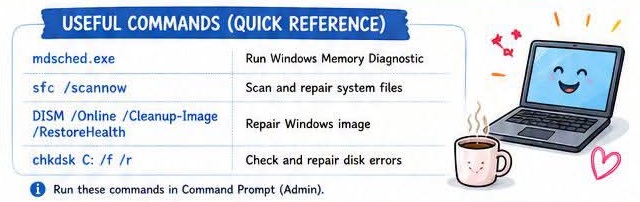
Here are the most useful commands for fixing this error:
| Command | Purpose |
|---|---|
mdsched.exe | Run Windows Memory Diagnostic |
sfc /scannow | Repair corrupted system files |
DISM /Online /Cleanup-Image /RestoreHealth | Repair Windows system image |
chkdsk C: /f /r | Scan and repair disk errors |
Final Thoughts
The MEMORY_MANAGEMENT Blue Screen (Stop Code 0x0000001A) may look intimidating, but it’s often fixable without reinstalling Windows. In many cases, the problem is caused by corrupted system files, outdated drivers, disk errors, or faulty RAM.
Start by running the built-in Windows repair tools such as Windows Memory Diagnostic, SFC, DISM, and CHKDSK. These utilities can resolve many common causes of the error. If the problem continues even after software repairs, it’s worth testing your RAM and checking your hardware for faults.
By following the troubleshooting steps in this guide and keeping your system updated, you can reduce the chances of encountering this Blue Screen again and keep your Windows PC running reliably.