Files become corrupted more often than many people realize. Whether it’s an important document, a family photo, a video, or a database, file corruption can make your data unreadable or unusable. Sometimes corruption happens suddenly after a power outage, while other times it develops gradually because of storage problems or failing hardware.
The good news is that corrupted files usually show warning signs before you completely lose access to them. Recognizing these symptoms early can help you back up your data, recover important files, and prevent further damage.
In this guide, we’ll explain the most common signs of file corruption, why they happen, and what you should do if you notice them.
What Is a Corrupted File?
A corrupted file is a file whose contents have been altered, damaged, or become incomplete. Every file follows a specific structure that allows software to read and display its contents correctly. If even a small part of that structure is damaged, the file may stop working properly.
Corruption can affect almost any file type, including:
- PDF documents
- Microsoft Word and Excel files
- Images (JPEG, PNG, GIF)
- Videos (MP4, MOV, AVI)
- ZIP and RAR archives
- Audio files
- Databases
- System files
The severity depends on which part of the file is damaged. Minor corruption may only affect a small section, while severe corruption can make the entire file unusable.
Common Signs of a Corrupted File
1. The File Won’t Open
One of the most obvious signs of file corruption is when the file refuses to open.
You may double-click the file, but instead of opening normally, your software displays an error message or closes unexpectedly.
Common error messages include:
- File cannot be opened
- Unsupported file format
- File is damaged
- Cannot read file
- Invalid file structure
- File appears to be corrupted
For example:
- Microsoft Word may display “Word experienced an error trying to open the file.”
- Adobe Reader may say “There was an error opening this document.”
- An image viewer may report “Unsupported image format.”
If the file previously worked without problems, corruption is a likely cause.
2. Error Messages While Opening the File
Sometimes the file opens, but the software immediately warns you that something is wrong.
Examples include:
- File contains unreadable content
- Repair the document?
- Invalid data found
- Corrupt archive
- CRC Error
- Unexpected end of file
Many modern applications attempt automatic repairs before opening the damaged file.
Although this may recover part of the data, some information is often lost.
3. Missing Content
A corrupted file may open successfully but contain incomplete information.
For example:
A Word document might lose:
- Paragraphs
- Images
- Tables
- Formatting
A PDF might contain:
- Blank pages
- Missing text
- Missing fonts
- Broken hyperlinks
A spreadsheet might lose:
- Cell values
- Charts
- Formulas
- Conditional formatting
If parts of your file suddenly disappear without editing, corruption is a possible reason.
4. Strange Characters or Random Symbols
Instead of readable text, you may see unusual characters such as:
@#%$^&*
□■■��¥¤©
This usually indicates that the application is reading damaged binary data instead of valid text.
You may also notice:
- Random letters
- Numbers in unexpected places
- Symbols replacing words
- Garbled paragraphs
This is especially common in damaged text documents and databases.
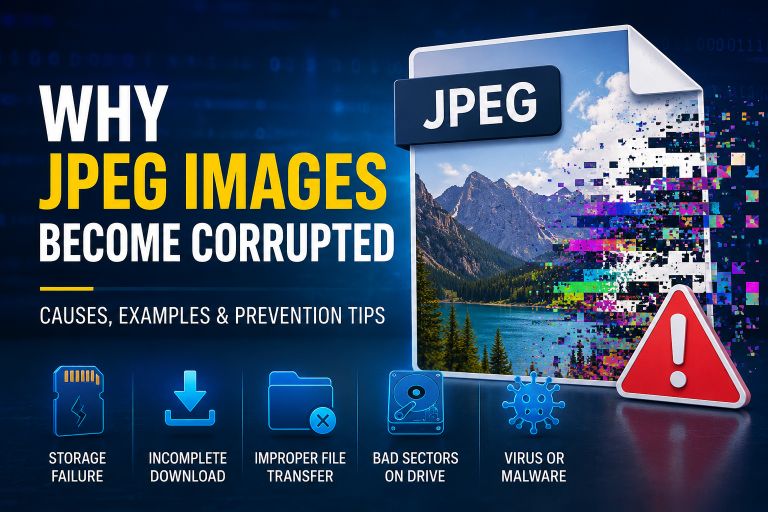
5. Images Look Broken
Image corruption often produces visible artifacts.
Common symptoms include:
- Half of the image is gray.
- Random colored blocks appear.
- Horizontal or vertical lines cover the photo.
- Missing sections.
- Distorted colors.
- Pixelated areas.
- Image won’t display completely.
Sometimes only part of the image is damaged because only certain sections of the image data were corrupted.
6. Videos Freeze or Skip
Video corruption is easy to notice because playback becomes abnormal.
Typical signs include:
- Freezing during playback
- Missing frames
- Black screen
- Audio continues but video stops
- Video stops halfway
- Choppy playback
- Distorted colors
- Audio out of sync
If the video’s index or metadata becomes corrupted, the media player may not know how to read the file correctly.
7. Audio Problems
Corrupted audio files may produce:
- Clicking sounds
- Static noise
- Missing sections
- Sudden silence
- Distorted voices
- Playback stopping unexpectedly
Music files may also show the wrong duration or refuse to play altogether.
8. File Size Looks Wrong
A damaged file often has an unusual file size.
For example:
A 100 MB video suddenly becomes:
- 0 KB
- 2 KB
- 15 bytes
or
- Several gigabytes larger than expected.
An abnormal file size usually indicates incomplete writing or damaged file allocation information.
9. Slow Opening Time
Healthy files usually open quickly.
Corrupted files may:
- Take much longer to load.
- Cause the application to freeze.
- Make Windows display “Not Responding.”
- Consume unusually high CPU usage.
The software repeatedly attempts to read damaged sections before eventually failing.
10. Frequent Software Crashes
If a particular file repeatedly crashes the application while other files work normally, corruption is a strong possibility.
Examples include:
- Word closes unexpectedly.
- Photoshop crashes while loading an image.
- VLC freezes on one video.
- Excel stops responding.
This happens because the software encounters invalid or unexpected data.
11. CRC Errors
CRC (Cyclic Redundancy Check) errors are among the strongest indicators of corruption.
They commonly appear when:
- Copying files
- Extracting ZIP archives
- Installing software
- Reading from external drives
A CRC error means the calculated checksum no longer matches the original data.
This almost always indicates damaged file contents or storage problems.
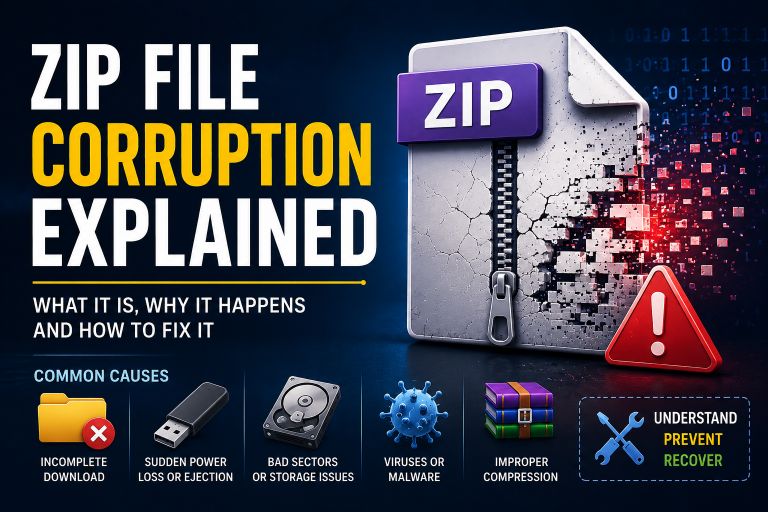
12. ZIP Files Cannot Be Extracted
Compressed archives frequently reveal corruption.
Common messages include:
- Unexpected end of archive
- CRC failed
- Archive is corrupt
- Invalid compressed data
- Cannot extract files
Only part of the archive may extract successfully, while the rest remains inaccessible.
13. Incorrect File Preview
Sometimes Windows Explorer cannot generate a preview.
Instead, you may see:
- Blank thumbnails
- Generic icons
- Preview unavailable
- Thumbnail loading forever
While not always caused by corruption, damaged file headers commonly produce this behavior.
14. Unexpected File Extension Changes
A corrupted file occasionally loses its proper extension or appears with an incorrect one.
For example:
Instead of:
report.docxyou might see:
report.tmp
report.file
report
Although extensions can be changed accidentally, corruption sometimes damages the file’s metadata, making it difficult for the operating system to recognize the correct format.
15. File Cannot Be Copied or Moved
Another common symptom is receiving errors while copying files.
Possible messages include:
- Cannot read from source file
- Data error (CRC)
- The file is corrupted
- The request failed due to an I/O device error
These problems often point to corruption or failing storage hardware.
16. Antivirus Detects Damaged Files
Some antivirus programs report that files cannot be scanned because they are corrupted.
This doesn’t necessarily mean the file contains malware.
Instead, the antivirus software cannot properly parse the damaged file structure.
17. Operating System Warnings
Windows may display warnings such as:
- Drive needs to be repaired.
- Scan and fix this drive.
- File system error detected.
- Disk errors found.
These warnings often indicate underlying storage issues that can eventually corrupt files if ignored.
Why Do Files Become Corrupted?
Many different situations can damage files.
The most common causes include:
Power Failure
If the computer shuts down while saving a file, the writing process may stop midway, leaving an incomplete file.
Improper USB Removal
Removing a flash drive without safely ejecting it can interrupt ongoing write operations.
Bad Sectors
A failing hard drive or SSD may develop damaged storage areas where files become unreadable.
Malware
Some viruses intentionally modify, encrypt, or destroy files.
Software Crashes
Applications that crash while saving may leave partially written files.
File Transfer Interruptions
Network interruptions or unstable USB connections can corrupt files during copying.
Faulty RAM
Defective memory modules can introduce incorrect data while files are being processed.
Aging Storage Devices
Older hard drives, SSDs, memory cards, and USB drives naturally wear out over time.
How to Confirm Whether a File Is Corrupted
If you suspect corruption, try these simple checks:
- Open the file on another computer.
- Use a different application.
- Compare the file size with a backup.
- Check whether similar files open correctly.
- Run a disk error check.
- Verify the file checksum if available.
- Restore an earlier version from backup.
- Test the storage device for errors.
If multiple files show similar symptoms, the problem may lie with the storage device rather than the files themselves.
How to Prevent File Corruption
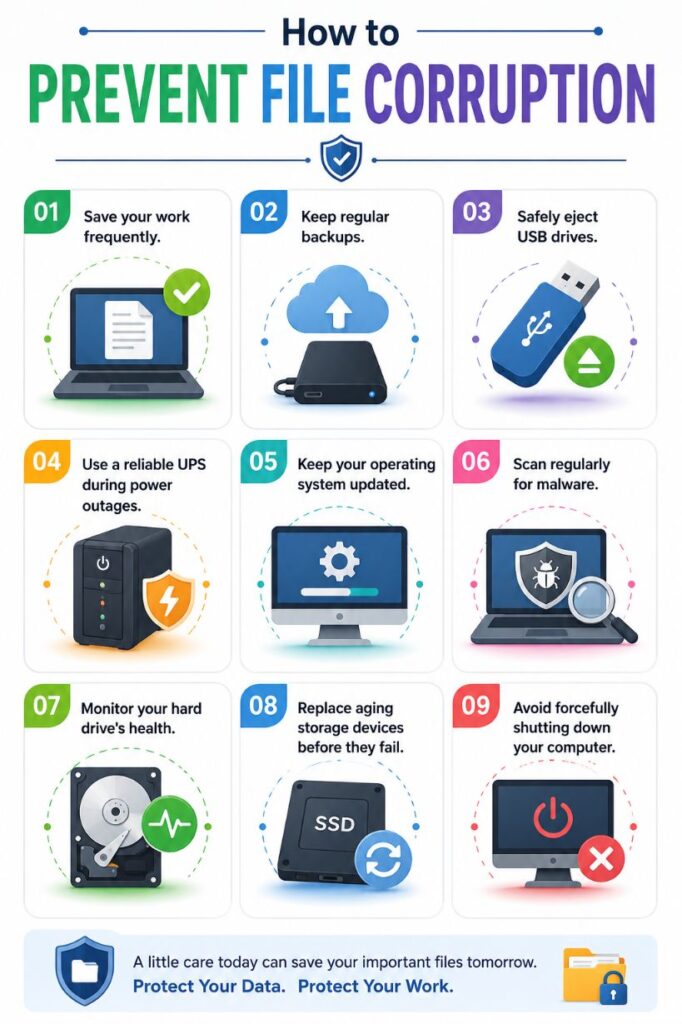
While corruption cannot always be avoided, these best practices greatly reduce the risk:
- Save your work frequently.
- Keep regular backups.
- Safely eject USB drives.
- Use a reliable UPS during power outages.
- Keep your operating system updated.
- Scan regularly for malware.
- Monitor your hard drive’s health.
- Replace aging storage devices before they fail.
- Avoid forcefully shutting down your computer.
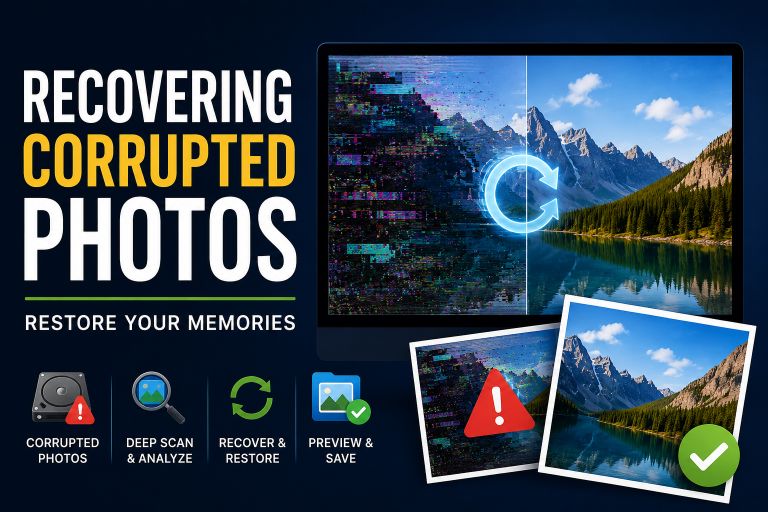
When Can a Corrupted File Be Recovered?
Recovery depends on how severely the file is damaged.
Minor corruption often affects only a small portion of the file, allowing specialized repair tools or backup copies to restore most or all of the data.
However, if critical structures such as the file header, allocation table, or large sections of the data are destroyed, complete recovery may not be possible. In such cases, recovering even part of the content is often considered a success.
This is why maintaining regular backups remains the most effective defense against permanent data loss.
Conclusion
Corrupted files rarely appear without warning. Files that refuse to open, display strange characters, lose content, crash applications, generate CRC errors, or show broken images and videos are all common indicators of corruption. Recognizing these warning signs early allows you to back up important data, check the health of your storage device, and attempt recovery before the damage spreads.
Whether the corruption is caused by hardware failure, unexpected power loss, malware, or software crashes, acting quickly can make a significant difference. By combining good backup habits with regular system maintenance and safe file-handling practices, you can minimize the risk of corruption and protect your valuable files from permanent loss.