Wi-Fi has become an essential part of everyday life. Whether you’re browsing the internet on your smartphone, streaming movies on your smart TV, attending online meetings, or playing multiplayer games, Wi-Fi keeps your devices connected without the need for physical cables.
Although using Wi-Fi is simple, the technology behind it is quite sophisticated. Your device and your wireless router constantly exchange data using radio waves, allowing information to travel almost instantly.
In this guide, you’ll learn What Is Wi-Fi?, how Wi-Fi works, the role of routers and modems, how devices communicate wirelessly, and what affects Wi-Fi performance.
What Is Wi-Fi?
Wi-Fi is a wireless networking technology that allows devices to connect to a local network and the internet using radio waves instead of Ethernet cables.
Devices such as laptops, smartphones, tablets, smart TVs, printers, gaming consoles, and smart home devices all use Wi-Fi to communicate with a wireless router.
Modern Wi-Fi networks operate on the 2.4 GHz, 5 GHz, and 6 GHz frequency bands, providing different levels of speed, coverage, and performance.
How Does Wi-Fi Work?
Wi-Fi works by transmitting data through radio signals between your device and a wireless router.
The router acts as a bridge between your local devices and the internet. When you request information, such as opening a website or watching a video, the router sends and receives data using radio waves instead of physical cables.
The entire process happens in milliseconds.
Step-by-Step: How Wi-Fi Connects You to the Internet
Understanding the process becomes easier when you break it down into individual steps.
Step 1: Your Internet Service Provides the Connection
Your Internet Service Provider (ISP) delivers internet access to your home through technologies such as:
- Fiber optic
- Cable broadband
- DSL
- Fixed wireless
- Satellite internet
The internet connection first reaches your modem or modem-router.
Step 2: The Router Creates a Wi-Fi Network
The router receives the internet connection and creates a wireless network.
This network broadcasts a Wi-Fi signal with:
- A network name (SSID)
- Security settings
- Password protection
Nearby devices can detect this wireless network.
Step 3: Your Device Connects to the Router
When you select your Wi-Fi network and enter the password, your device authenticates with the router.
Once connected, the router assigns your device a private IP address using DHCP.
This allows the router to identify each connected device.
Step 4: Your Device Sends a Request
Suppose you open your web browser and visit a website.
Your device sends a request through the Wi-Fi connection to the router.
The router forwards that request to your ISP, which then sends it across the internet to the appropriate web server.
Step 5: The Server Sends the Data Back
The website’s server responds by sending the requested information back through the internet.
The data travels:
- Web server
- ISP
- Router
- Your device
Within seconds, the webpage appears on your screen.
How Wi-Fi Uses Radio Waves
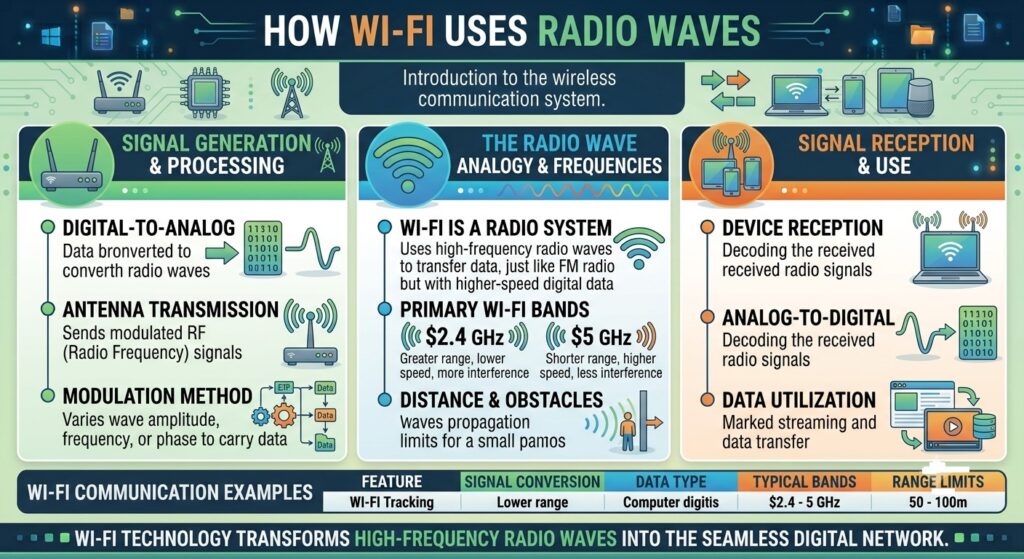
Unlike mobile networks that use cellular towers, Wi-Fi communicates over short distances using radio waves.
The router continuously sends and receives radio signals that carry digital information.
Your device contains a wireless network adapter that:
- Receives radio signals
- Converts them into digital data
- Sends data back to the router
This two-way communication happens continuously while you’re connected.
Wi-Fi Frequency Bands
Modern routers usually support one or more wireless frequency bands.
2.4 GHz
The 2.4 GHz band provides:
- Longer range
- Better wall penetration
- Wider coverage
However, it is also more crowded because many devices use it.
Examples include:
- Bluetooth devices
- Baby monitors
- Microwave ovens
- Older Wi-Fi devices
5 GHz
The 5 GHz band offers:
- Faster speeds
- Lower interference
- Lower latency
Its downside is a shorter coverage range compared to 2.4 GHz.
It is ideal for:
- HD streaming
- 4K video
- Online gaming
- Video conferencing
6 GHz
The newest Wi-Fi 6E and Wi-Fi 7 routers also support the 6 GHz band.
Benefits include:
- More available channels
- Less interference
- Lower latency
- Higher speeds
The trade-off is reduced coverage compared to lower frequencies.
What Is an SSID?
SSID stands for Service Set Identifier.
It is simply the name of your Wi-Fi network.
Examples include:
- Home WiFi
- Office Network
- MyRouter_5G
When your phone displays available Wi-Fi networks, it is showing nearby SSIDs.
What Happens When You Enter the Wi-Fi Password?
The password protects your wireless network from unauthorized users.
When you enter the password:
- Your device requests permission to join.
- The router verifies the password.
- A secure encrypted connection is established.
- The device is allowed to access the network.
Modern routers typically use WPA2 or WPA3 encryption for improved security.
How Multiple Devices Share One Wi-Fi Network
Your router can manage many devices simultaneously.
Each connected device receives:
- A private IP address
- Its own communication session
- Data intended only for that device
The router keeps track of all traffic so information reaches the correct destination.
This allows multiple users to browse, stream videos, and play online games at the same time.
What Affects Wi-Fi Speed?
Several factors influence wireless performance.
Distance
The farther you are from the router, the weaker the signal becomes.
Walls and Obstacles
Concrete walls, metal objects, and large furniture can reduce Wi-Fi signal strength.
Interference
Nearby wireless devices may interfere with your network.
Common sources include:
- Bluetooth devices
- Cordless phones
- Microwaves
- Neighboring Wi-Fi networks
Router Quality
Newer routers generally support:
- Faster Wi-Fi standards
- Better antennas
- Improved signal management
- More connected devices
Internet Speed
Even with excellent Wi-Fi coverage, your internet speed cannot exceed the speed provided by your ISP.
Wi-Fi Security
A secure Wi-Fi network protects your personal information from unauthorized access.
Best practices include:
- Use WPA3 or WPA2 encryption.
- Create a strong Wi-Fi password.
- Change the default router password.
- Keep router firmware updated.
- Disable WPS if not needed.
- Review connected devices regularly.
Common Wi-Fi Problems
Several issues can affect wireless performance.
Weak Signal
Usually caused by distance or physical obstacles.
Slow Internet
May result from:
- Too many connected devices
- Network congestion
- ISP issues
- Older routers
Frequent Disconnects
Possible causes include:
- Outdated router firmware
- Driver problems
- Wireless interference
- Router overheating
Unable to Connect
Often caused by:
- Incorrect password
- Disabled Wi-Fi adapter
- DHCP problems
- Router configuration issues
Wi-Fi vs Ethernet
| Wi-Fi | Ethernet |
|---|---|
| Wireless connection | Wired connection |
| Easy to use | Requires cable |
| Greater mobility | More stable connection |
| Convenient for mobile devices | Lower latency |
| Can experience interference | Minimal interference |
For gaming, servers, and professional workstations, Ethernet often provides more consistent performance. For everyday browsing and mobile devices, Wi-Fi offers greater convenience.
Final Thoughts
Wi-Fi makes modern wireless communication possible by using radio waves to connect devices to a router, which then provides access to the internet. Every time you browse a website, stream a movie, or join a video call, your device exchanges data with the router in a matter of milliseconds.
Understanding how Wi-Fi works can help you improve your home network, troubleshoot common connection problems, and choose the right router or Wi-Fi standard for your needs. Whether you’re using Wi-Fi for work, entertainment, or smart home devices, knowing the basics of wireless networking makes it easier to get the best performance from your connection.